Use Buddy+ on your Mac
One Buddy+ subscription covers your iPhone and your Mac. Restore it on the Mac with the same Apple Account. Here's what Buddy+ adds on the Mac, and how Enhanced Accuracy works there.
Step 1 of 2
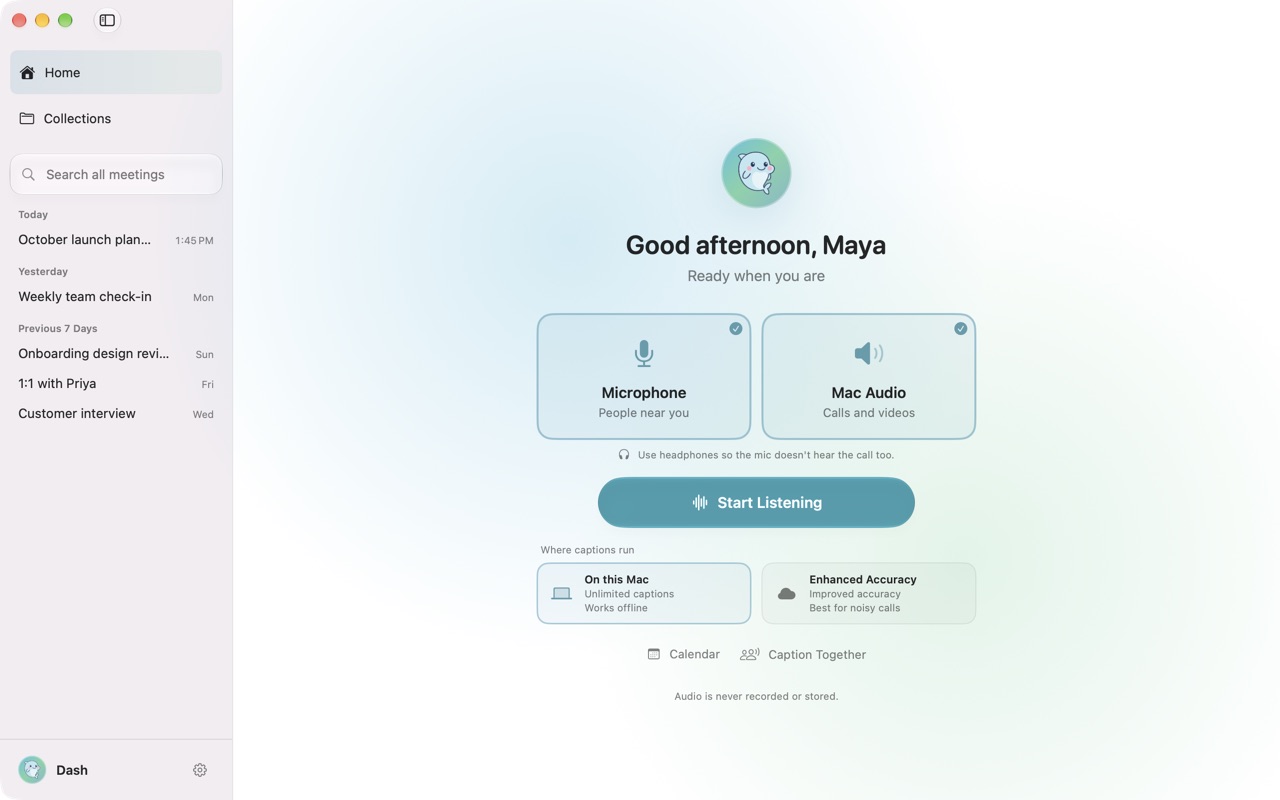
On Home, under Where captions run, click Enhanced Accuracy. The first time, read what's sent and what's kept, then click Allow.
All steps as text
- On Home, under Where captions run, click Enhanced Accuracy. The first time, read what's sent and what's kept, then click Allow.
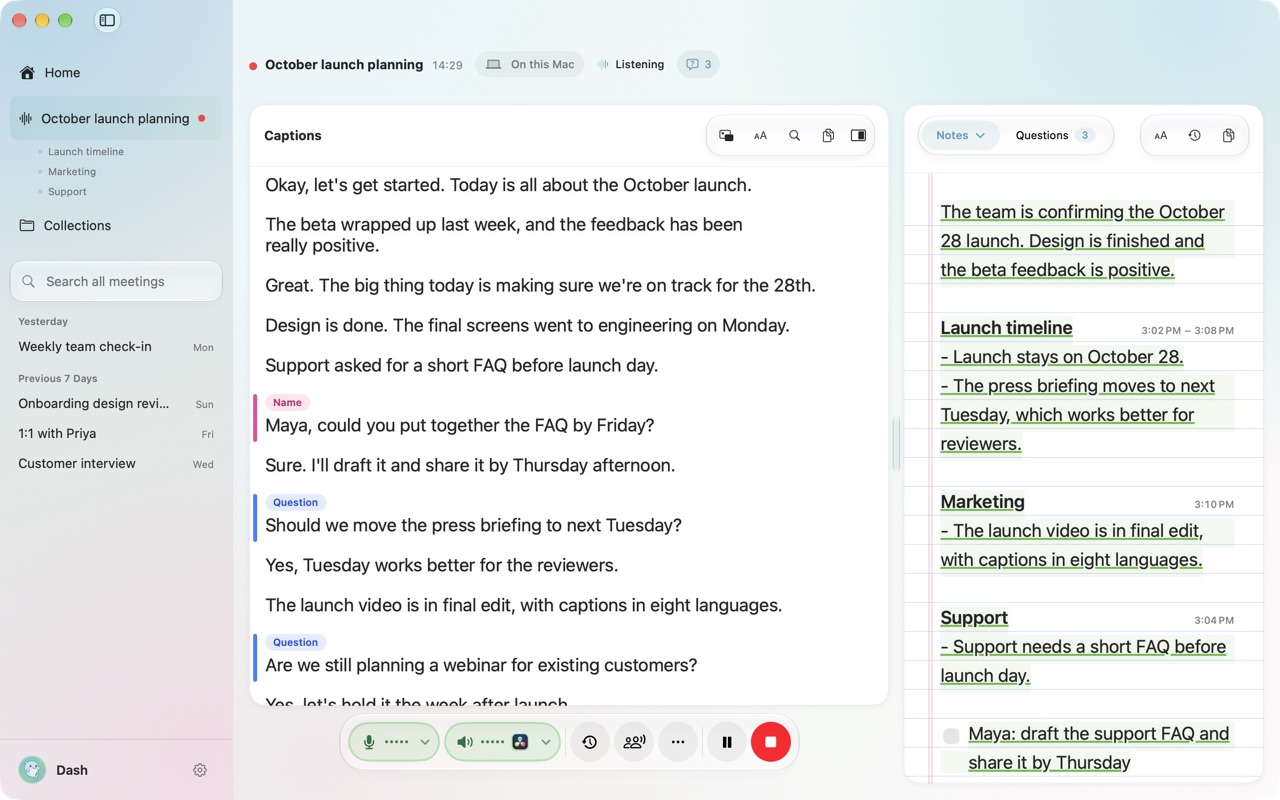
- During a meeting, the chip at the top shows where captions run. Click it, or press ⌃⌘E, to switch.
If you already have Buddy+ on your iPhone, you don't need to buy it again. One subscription covers your iPhone and your Mac, as long as both use the same Apple Account. You just need to restore it on the Mac once.
Restore Buddy+ on your Mac
- Open Hearing Buddy on your Mac.
- Open Settings (click Settings at the bottom of the sidebar, or press ⌘,).
- Click General.
- Under Already have Buddy+?, click Restore Purchases.
When it works, you'll see Buddy+ is restored. Your access is ready on this Mac.
If you see No active Buddy+ subscription was found, your Mac's App Store is probably signed in with a different Apple Account. Open the App Store, sign in with the Apple Account you used to subscribe, then click Restore Purchases again.
You can also restore from the Restore link at the bottom of any Buddy+ screen.
What's free on the Mac
- Unlimited live captions on your Mac.
- Buddy's notes, Recap, Catch Up and Ask. See Notes, Recap, Catch Up and Ask on Mac.
- Saved meetings, search and export.
- Caption Together, including translating captions someone shares with you.
- 30 minutes of Enhanced Accuracy, once.
What Buddy+ adds on the Mac
- Name and question alerts, including banners while you're in other apps. Turn them on in Settings > Meetings > Alerts. Buddy listens for the name you entered in Settings > General.
- Translating your own captions as you listen.
- More Enhanced Accuracy time every billing period, plus extra hours with More Hours….
- More buddies to choose from.
To manage or cancel, click Manage Subscription in Settings > General, or see Cancel your Buddy+ subscription or free trial.
Enhanced Accuracy on your Mac
Captions are made on your Mac by default. Enhanced Accuracy sends audio to a cloud service for clearer captions, which helps on noisy calls. It's off by default on the Mac, and you choose when to use it.
To turn it on, do any one of these:
- On Home, under Where captions run, click Enhanced Accuracy.
- During a meeting, click the Where captions run button at the top, or press ⌃⌘E.
- To use it every time, turn on Start meetings with Enhanced Accuracy in Settings > Meetings.
The first time, the app explains what is sent and asks you to choose Not Now or Allow:
- With Mac Audio on: audio playing on your Mac, which includes other people on the call, plus your dictionary words, streams to Muse Voice Transcribe by Meta for live captions. While Mac audio is off, your microphone is sent instead. Only one is sent at a time.
- With only the Microphone on: what your microphone hears, which includes everyone in the room, plus your dictionary words, streams to Muse Voice Transcribe by Meta for live captions.
- Meta doesn't keep any of it. Hearing Buddy never records or stores audio, and your captions stay on your Mac as text.
- Others in the meeting: their voices are sent too. Follow your workplace's rules for captioning calls.
Your dictionary words are the names and terms you add with Word List… in Settings > Meetings > Enhanced Accuracy.
Enhanced Accuracy needs an internet connection. If the connection drops, time runs out or your language isn't covered, captions keep going on your Mac without stopping.
Enhanced Accuracy time
Everyone gets 30 free minutes. Buddy+ includes more time each billing period, and your time is shared between your iPhone and your Mac. See how much is left in Settings > Meetings > Enhanced Accuracy > Time left. For how hours work, see How Enhanced Accuracy time works.
Tip: If your hours look wrong, copy your Account ID from Settings > Meetings > Enhanced Accuracy and email it to [email protected].
Last updated November 24, 2026.
Still need help?
Email [email protected]. A real person on our small team reads every message.