Float captions over other apps (the Bubble)
The Bubble is a small caption window that stays on top of Zoom, Teams or any other app. Open it with Float Captions or ⇧⌘B.
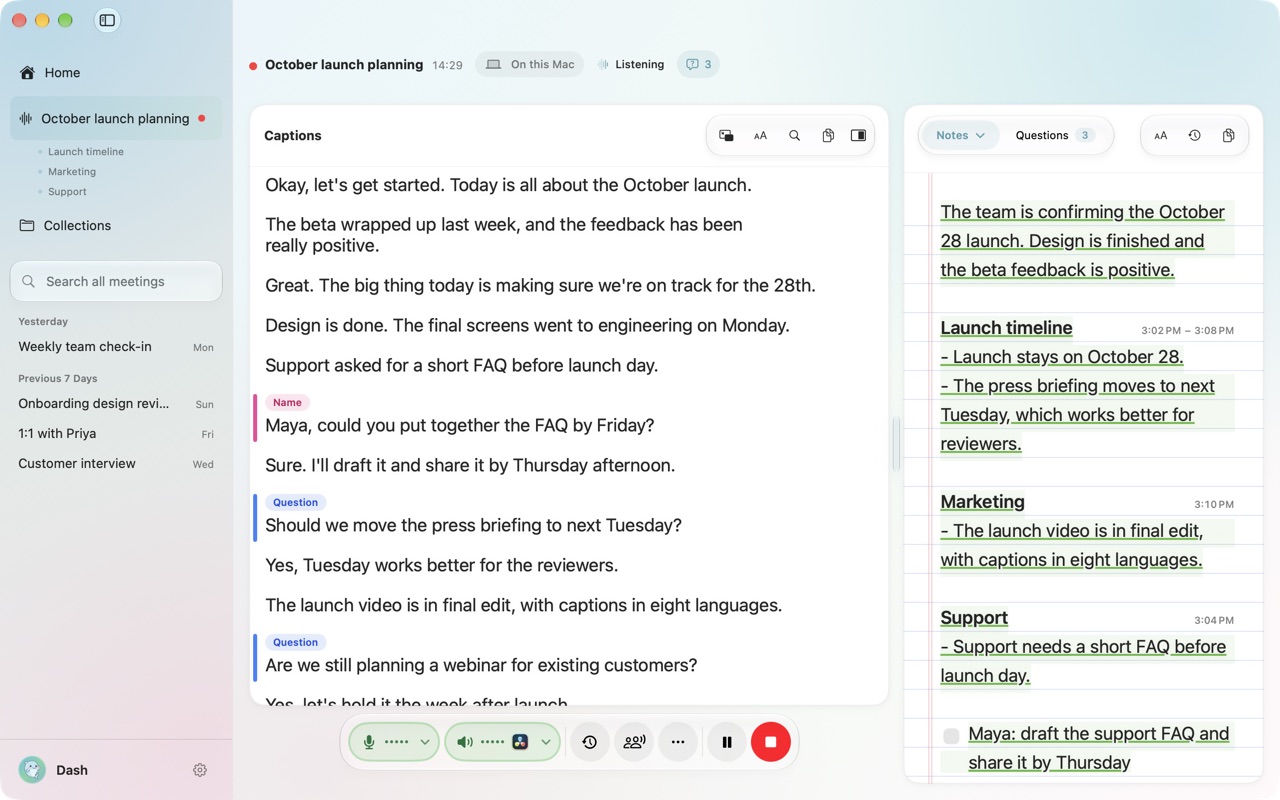
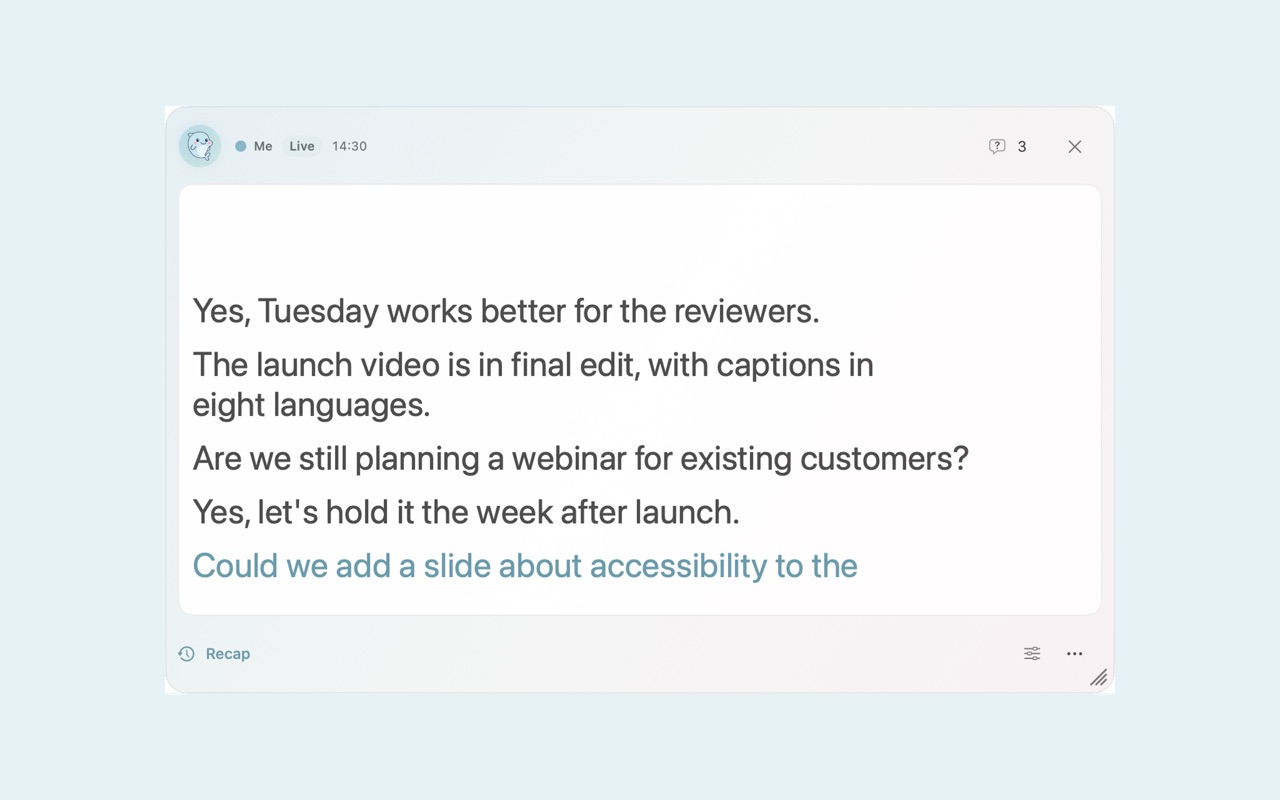
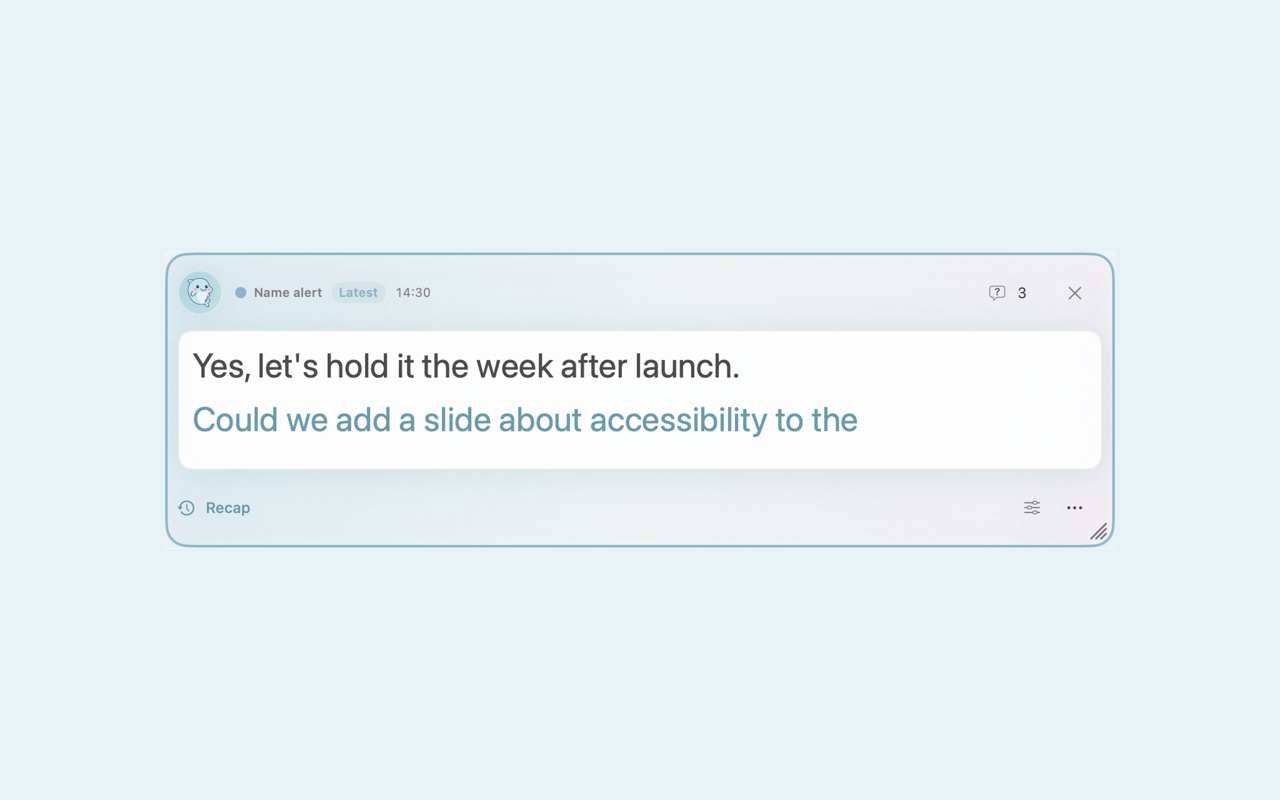
Step 1 of 3
During a meeting, click More, then Float Captions. Or press ⇧⌘B.
All steps as text
- During a meeting, click More, then Float Captions. Or press ⇧⌘B.
- Captions float in a small window above your other apps. Drag it wherever you like.
- With Buddy+, the window shows Name alert when someone says your name. Click Recap to catch up on the last 90 seconds.
The Bubble is a small caption window that floats on top of your other apps, so you can read captions while you look at a call, slides or a video. The app names it after your buddy (for example Buddy Bubble).
Open the Bubble
During a meeting, do any one of these:
- Press ⇧⌘B.
- Choose Meeting > Float Captions.
- Click More in the control bar, then Float Captions.
To bring captions back into the main window, press ⇧⌘B again or choose Meeting > Return Captions to Meeting.
Tip: To open the Bubble every time a meeting starts, turn on Open Buddy Bubble automatically in Settings > Meetings > Alerts.
Move and resize it
- Drag the Bubble anywhere on your screen.
- Click the ⋯ button in the Bubble, then Make Bigger or Make Smaller.
- To put it back where it started, click ⋯ > Restore Default Position.
- To change the text size and look, click the sliders button in the Bubble.
What else the Bubble does
- Recap: click it for a quick summary of the last 90 seconds. See Notes, Recap, Catch Up and Ask on Mac.
- Questions: shows questions Buddy found in the captions.
- ⋯ menu: Pause or Resume, Open Meeting Workspace, Hide Floating Captions, and end and save the meeting.
If the Bubble says Waiting for speech…, Buddy hasn't heard anyone yet. Check that the right source is on. See Caption calls and videos on your Mac.
Use the menu bar
While Hearing Buddy is open, its icon sits in your Mac's menu bar. Click it to:
- Start Meeting or Open Hearing Buddy when nothing is running.
- Open Transcript, Show Floating Captions or Hide Floating Captions, and Pause or Resume during a meeting.
Shortcuts that work from any app
You can use these without switching to Hearing Buddy:
| Shortcut | What it does |
|---|---|
| ⌃⌥⌘B | Starts a meeting, or opens the one already running |
| ⌃⌥⌘C | Shows a Recap in the Bubble |
They're on by default. To turn them off, go to Settings > Shortcuts and turn off Use shortcuts in other apps. If another app already uses the same keys, Hearing Buddy tells you, and the Meeting menu still works.
For every shortcut, see Mac keyboard shortcuts.
Last updated November 24, 2026.
Still need help?
Email [email protected]. A real person on our small team reads every message.