Notes, Recap, Catch Up and Ask on Mac
On your Mac, Buddy writes meeting notes as you go, recaps the last 90 seconds, catches you up when you look away and answers questions about saved meetings. All free.
Step 1 of 3
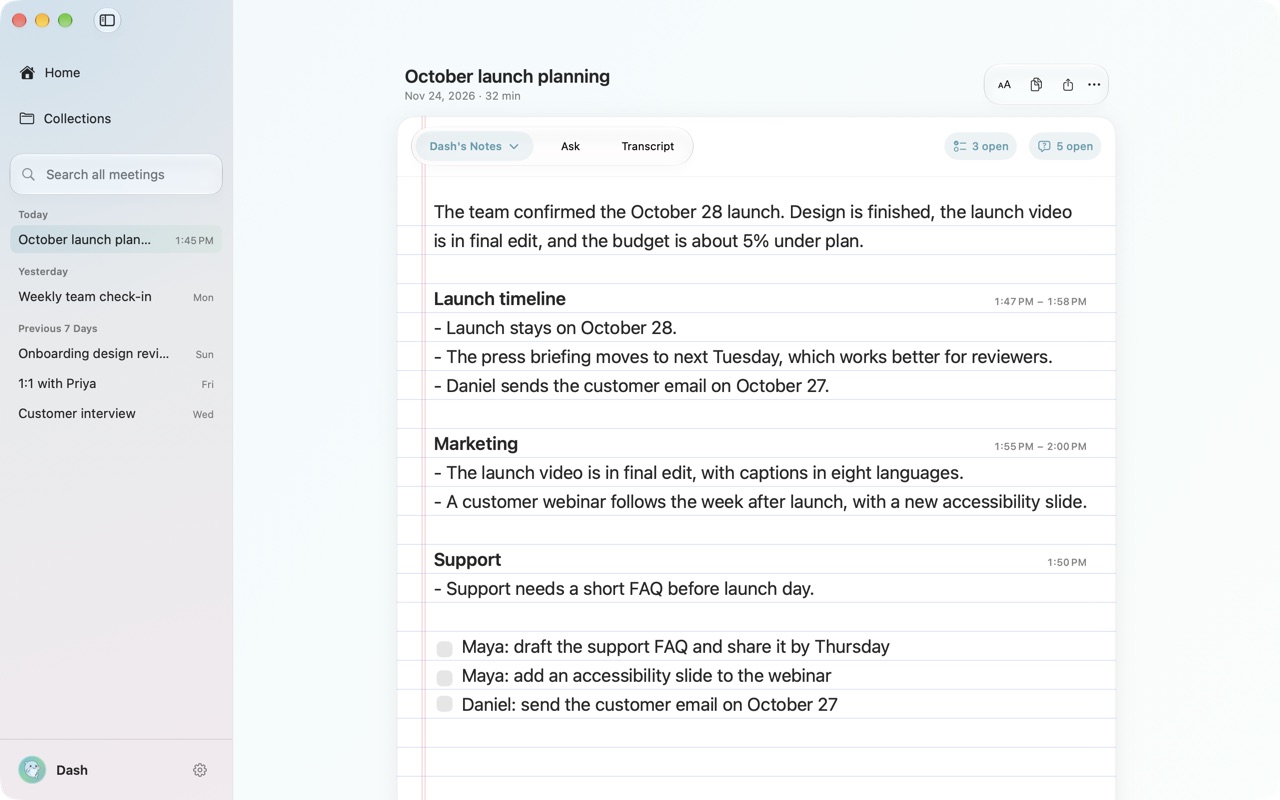
Open a saved meeting from the sidebar. Your buddy's notes come first, with to-dos at the bottom.
All steps as text
- Open a saved meeting from the sidebar. Your buddy's notes come first, with to-dos at the bottom.
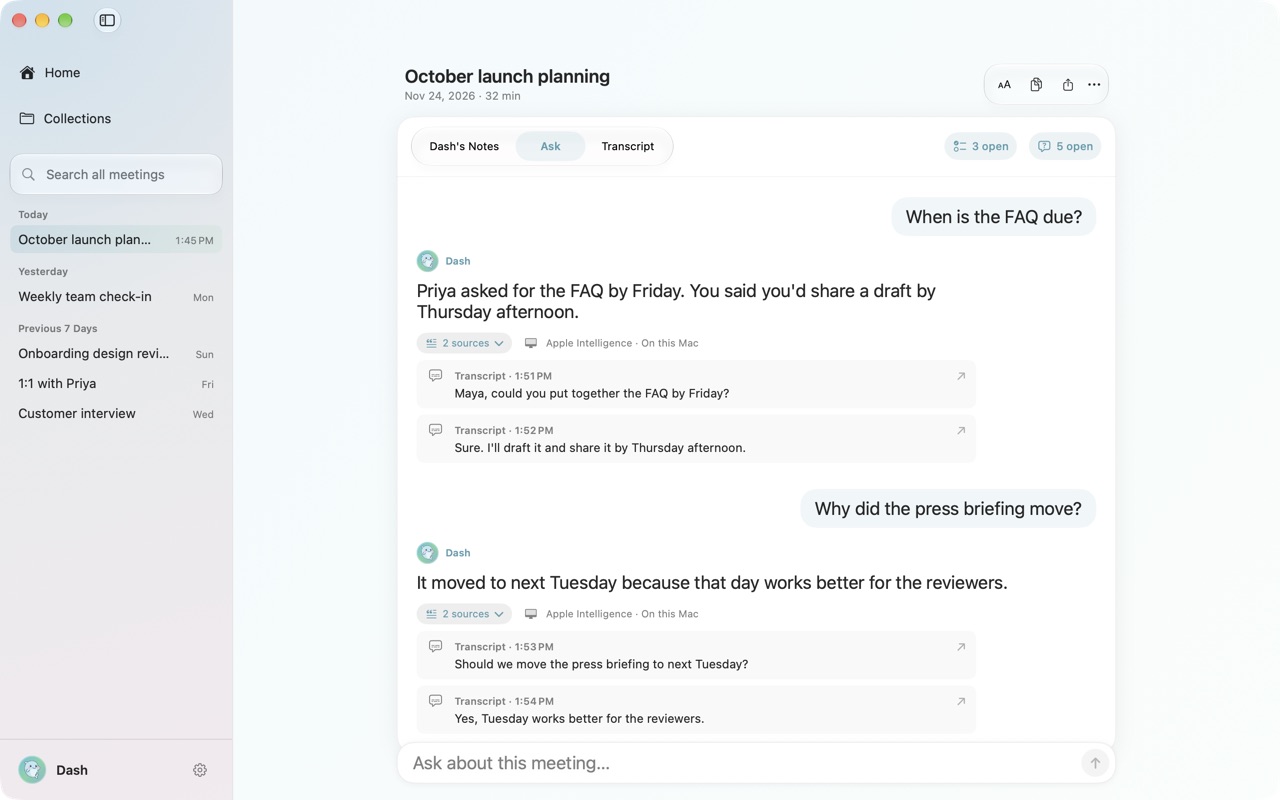
- Click Ask, then type a question about the meeting. Each answer shows the lines it came from.
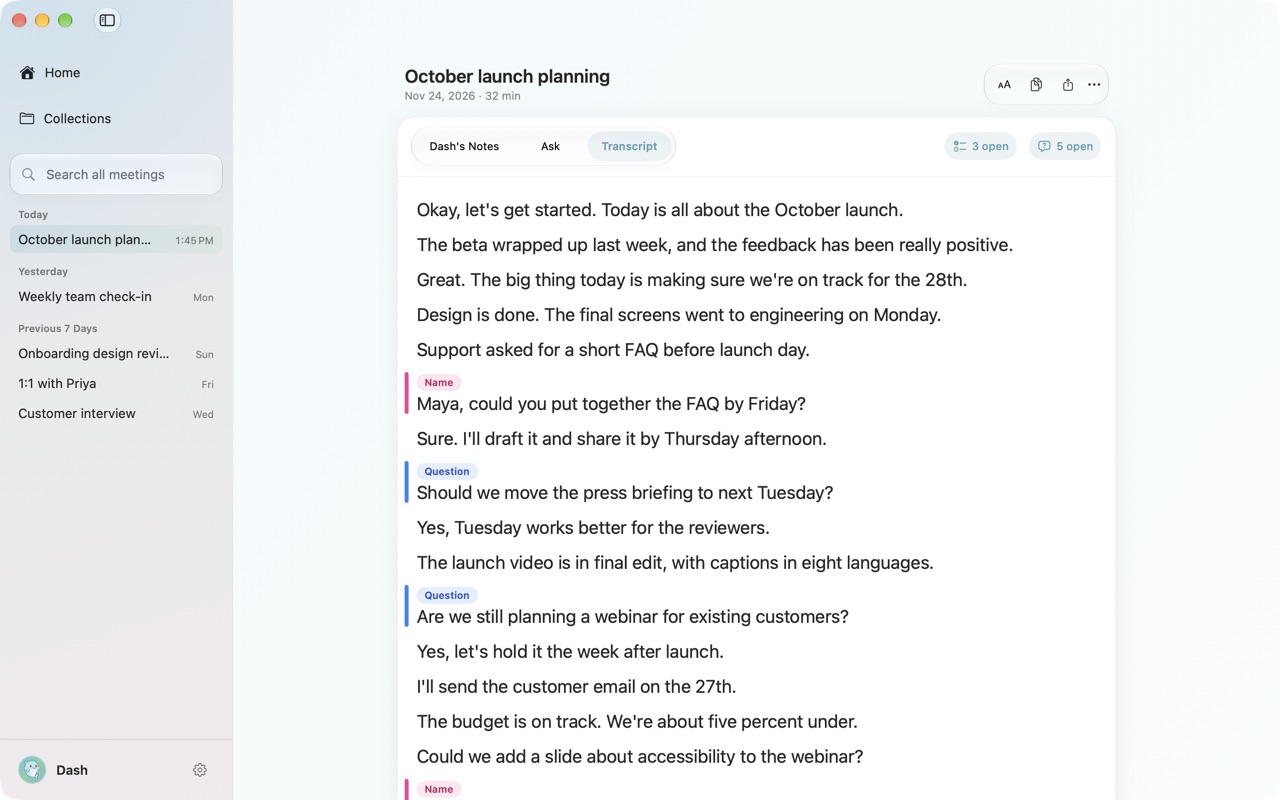
- Click Transcript to read every word, with questions and your name tagged.
Buddy can write notes during a meeting, recap what was just said, catch you up after you look away, and answer questions about a saved meeting. On the Mac these are all free.
What you need
- Apple Intelligence turned on on your Mac, in System Settings.
- An internet connection. Notes, recaps and answers are written with Apple Private Cloud Compute.
Captions don't need either one. They keep working on your Mac even when notes can't.
Note: Only meeting text is sent, never audio. Requests can include the transcript, your own writing, the current notes and recent questions. Apple Private Cloud Compute doesn't keep the request. Meeting titles are written on your Mac when possible.
Buddy's Notes
During a meeting, Buddy's Notes (shown with your buddy's name) fill in on their own once enough has been said.
- Update Now refreshes the notes right away.
- Note style changes how they're written: Automatic, Concise, Interview, 1:1, Appointment or Lecture.
- Add My Note (⇧⌘N) adds a line of your own.
- Save Latest Caption to Notes (⇧⌘D) copies the newest caption into your notes.
- Highlight My Notes marks the parts you wrote, so they stand out from Buddy's.
To-dos show up as checkboxes. In a saved meeting, click the count button at the top of the notes (for example 2 open) to jump to the ones still open. Press ⇧⌘U to check or uncheck the to-do you're on.
Recap: the last 90 seconds
Lost the thread? Click Recap in the control bar, or press ⌃⌥⌘C. Buddy sums up the last 90 seconds in a few lines. Recap also works from the floating Bubble, and ⌃⌥⌘C works even while you're in another app.
Catch Up after you look away
If you switch to another app for a minute or more during a meeting, you'll see "You were away" when you come back. Click Catch Up and Buddy sums up what you missed, up to the last 10 minutes. The offer fades after a short while if you don't need it.
Recaps and catch-ups are just for that moment. They aren't added to your notes.
Questions
Buddy keeps a list of questions it hears in the captions. Click More > Questions…, or press ⌃⌘Q.
- Open shows questions still waiting for an answer. Answered shows ones you've marked.
- Click Show in transcript to see where a question was asked.
- Only you mark a question answered. Buddy doesn't decide that for you.
Ask about a saved meeting
- Open a saved meeting in the sidebar.
- Click Ask (or press ⌘2).
- Type a question, like "What was decided?" or "What do I need to do?", and press ⌘Return.
Each answer shows its sources: the transcript lines or notes it came from. An answer marked General knowledge didn't come from the meeting. If the meeting doesn't support an answer, Buddy says so instead of guessing.
Daily limit
Apple sets a daily limit for Apple Private Cloud Compute. If you reach it, you'll see that the limit is used up and when notes come back. Captions keep going. Click Raise Limit to see Apple's options for a higher daily limit.
Notes settings
In Settings > Meetings > Notes you can choose:
- Notes language, used from your next meeting.
- Enhanced notes update speed: Automatic, or a fixed number of minutes.
If notes, recaps or answers aren't showing, see Mac troubleshooting.
Last updated November 24, 2026.
Still need help?
Email [email protected]. A real person on our small team reads every message.