Get started with Hearing Buddy for Mac
Hearing Buddy for Mac captions the people around you and the sound from calls and videos, right on your Mac. It needs macOS 27 and no iPhone.
Step 1 of 4
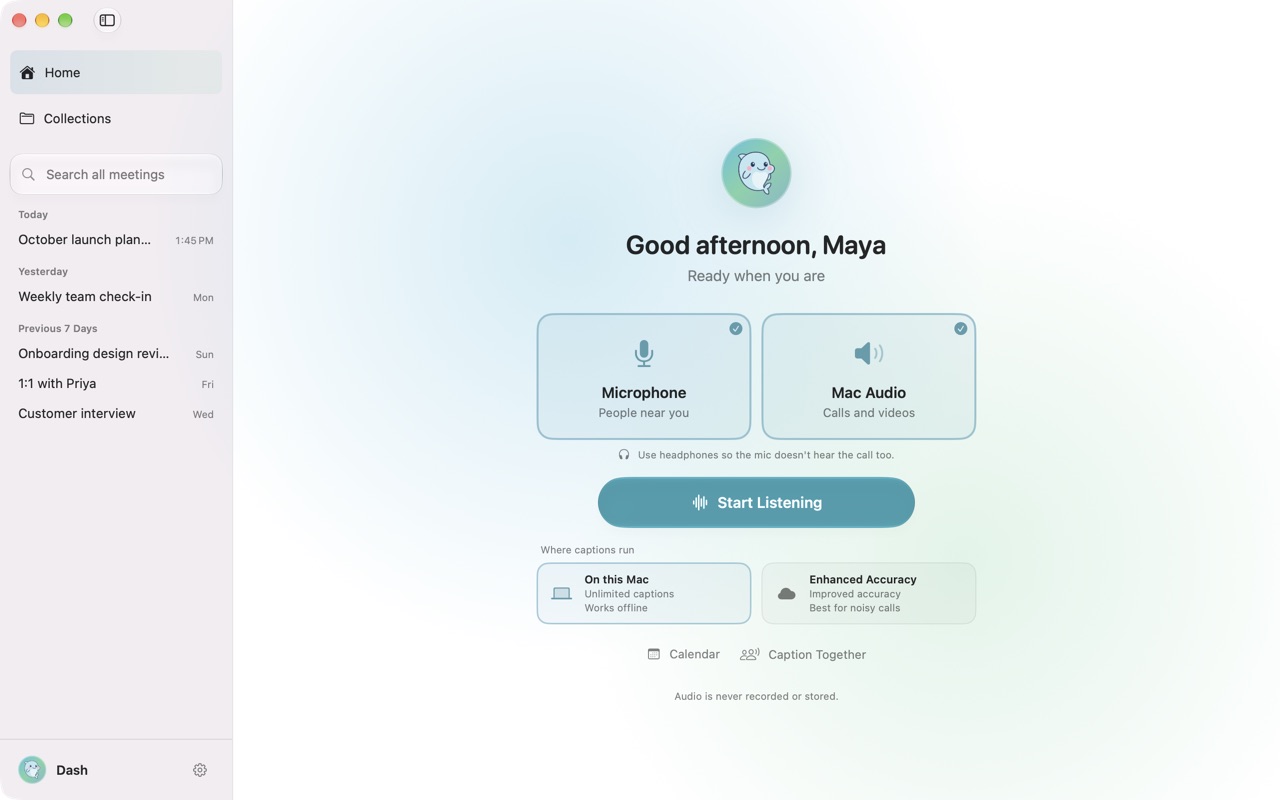
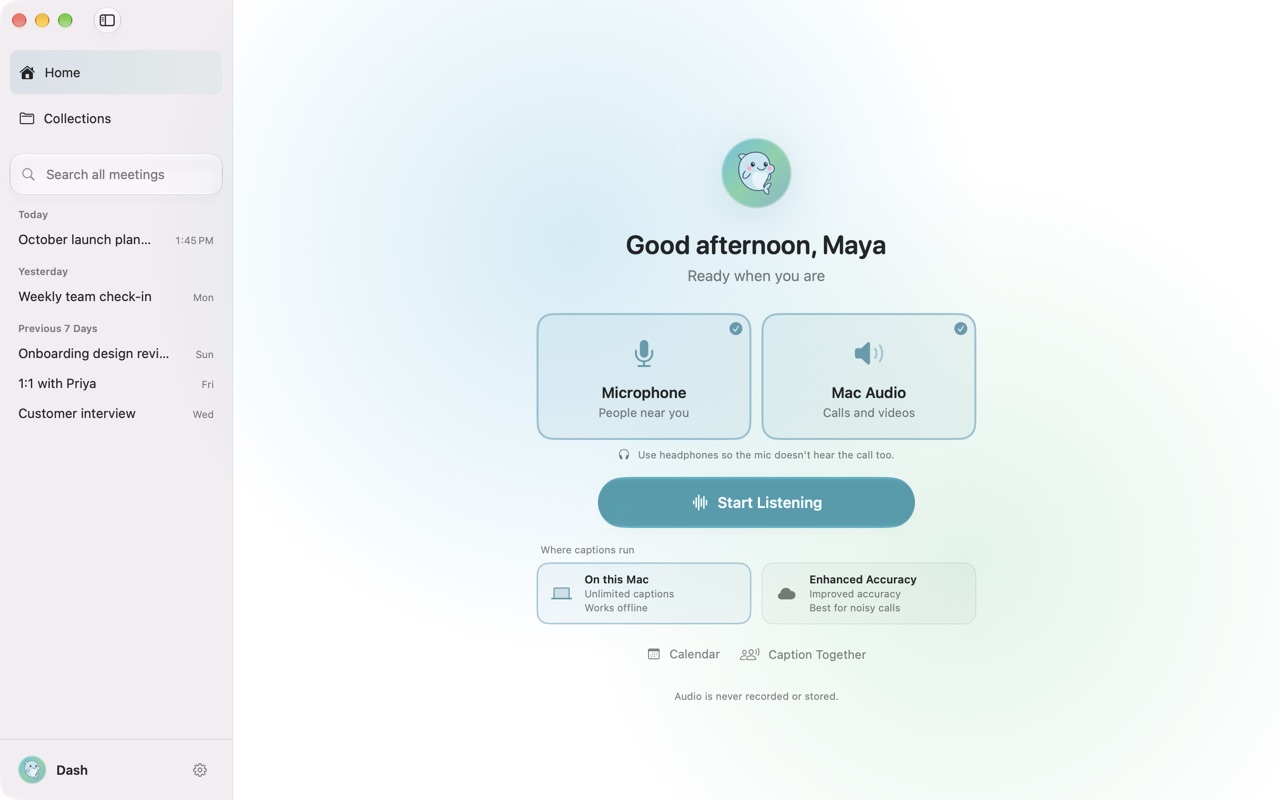
Choose what to caption: Microphone for people near you, Mac Audio for calls and videos, or both.
All steps as text
- Choose what to caption: Microphone for people near you, Mac Audio for calls and videos, or both.
- Click Start Listening, or press ⌘N.
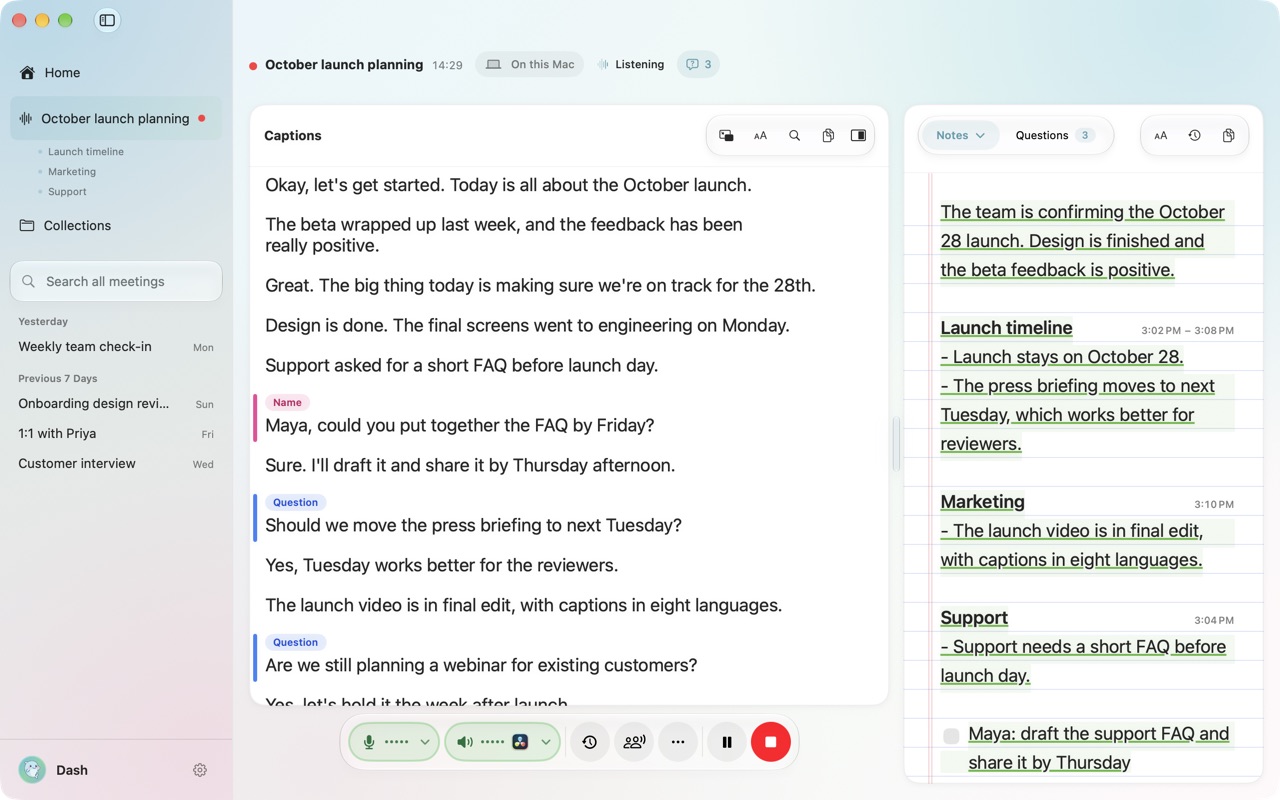
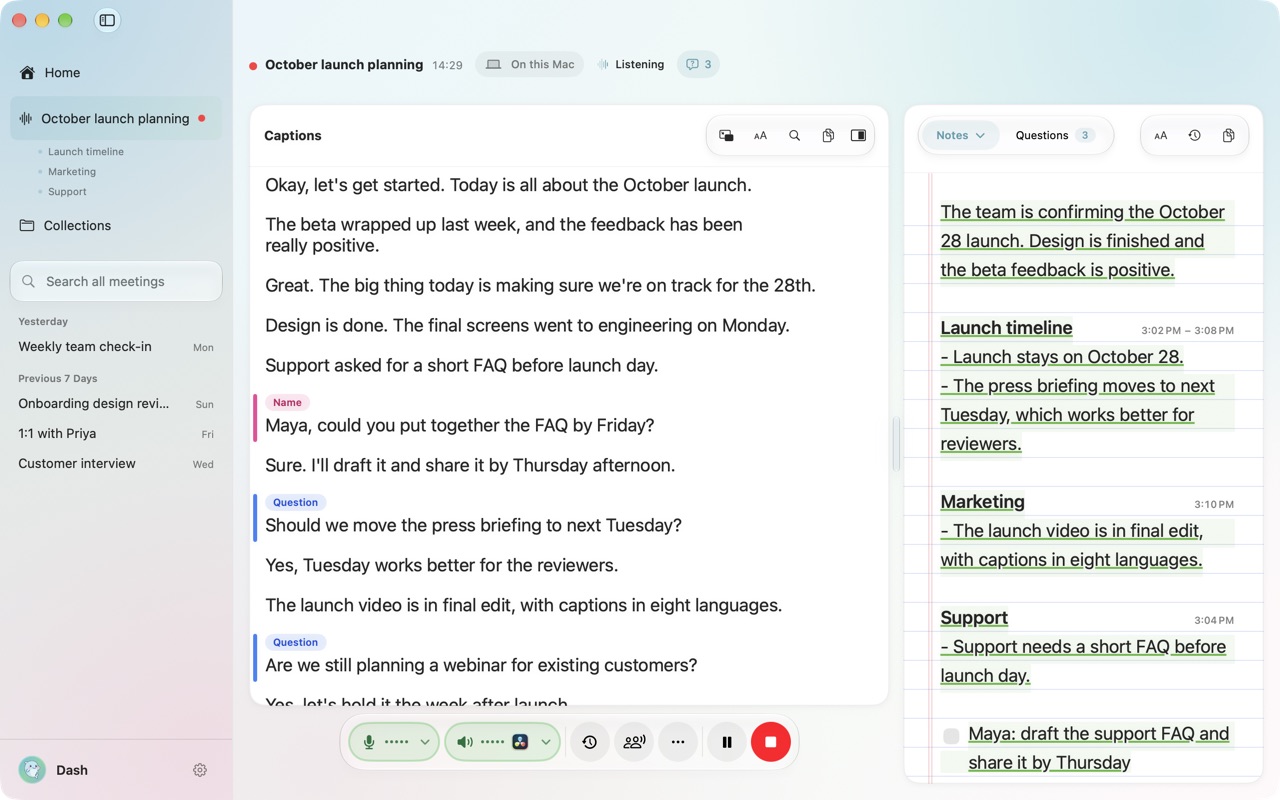
- Captions appear on the left and your buddy's notes build on the right. Questions and your name are tagged.
- When you're done, click the red stop button. The meeting is saved with its transcript and notes.
Hearing Buddy for Mac is a free download from the Mac App Store. It shows live captions of the people around you and of anything playing on your Mac, like calls and videos. You don't need an iPhone to use it.
Note: Hearing Buddy for Mac requires macOS 27. If the App Store doesn't offer it, check your Mac's version in Apple menu > About This Mac.
Install it
- Open the App Store app on your Mac.
- Search for Hearing Buddy and click Get.
- Open Hearing Buddy from your Applications folder.
Already have Hearing Buddy on your iPhone? In the iPhone app, go to Settings > Your Devices > Hearing Buddy for Mac. It opens the share sheet, so you can send the link to your Mac with AirDrop, Messages or Notes.
Setup
The first time you open the app, your buddy walks you through a short setup:
- A few questions about where you need captions most.
- Choose your buddy and give it a name. The app shows that name everywhere.
- Pick where you meet. This sets what Hearing Buddy listens to first.
- Allow the Microphone so Buddy can hear the people near you.
- Choose your caption text size and language.
- If you'll caption calls, allow System Audio so Buddy can hear sound from your Mac. See Caption calls and videos on your Mac.
You'll also see a Buddy+ screen. Live captions on your Mac are free, so you can close it with the X in the corner and keep going. Every setting can be changed later in Settings.
Choose what Buddy listens to
On Home, two cards decide what gets captioned:
- Microphone: voices around you. Use this in a room, at a desk or at the doctor's office.
- Mac Audio: sound from apps and calls, like Zoom, FaceTime or a video.
- Both: turn on both cards to caption your Mac's sound and the people near you together. Wear headphones so the mic doesn't hear the call too.
At least one card always stays on.
Start and stop
- On Home, click Start Listening, or press ⌘N.
- Captions appear as people talk.
- To pause, click Pause or press ⇧⌘P.
- When you're done, press ⌘. or click End. The meeting is saved on your Mac with its transcript and notes.
Tip: If Hearing Buddy spots a call starting in Zoom, Teams, FaceTime or another meeting app, Home shows Caption This Meeting. One click starts captions with Mac Audio on.
Your privacy
Audio is never recorded or stored. Hearing Buddy turns speech into text on your Mac, and only the text is kept. Once your language has downloaded, captions work without an internet connection.
Next steps
Last updated November 24, 2026.
Still need help?
Email [email protected]. A real person on our small team reads every message.