Share captions from your Mac (Caption Together)
Caption Together lets people nearby read your Mac's live captions on their own Mac or iPhone, and lets you read theirs. It's free and works without internet.
Step 1 of 2
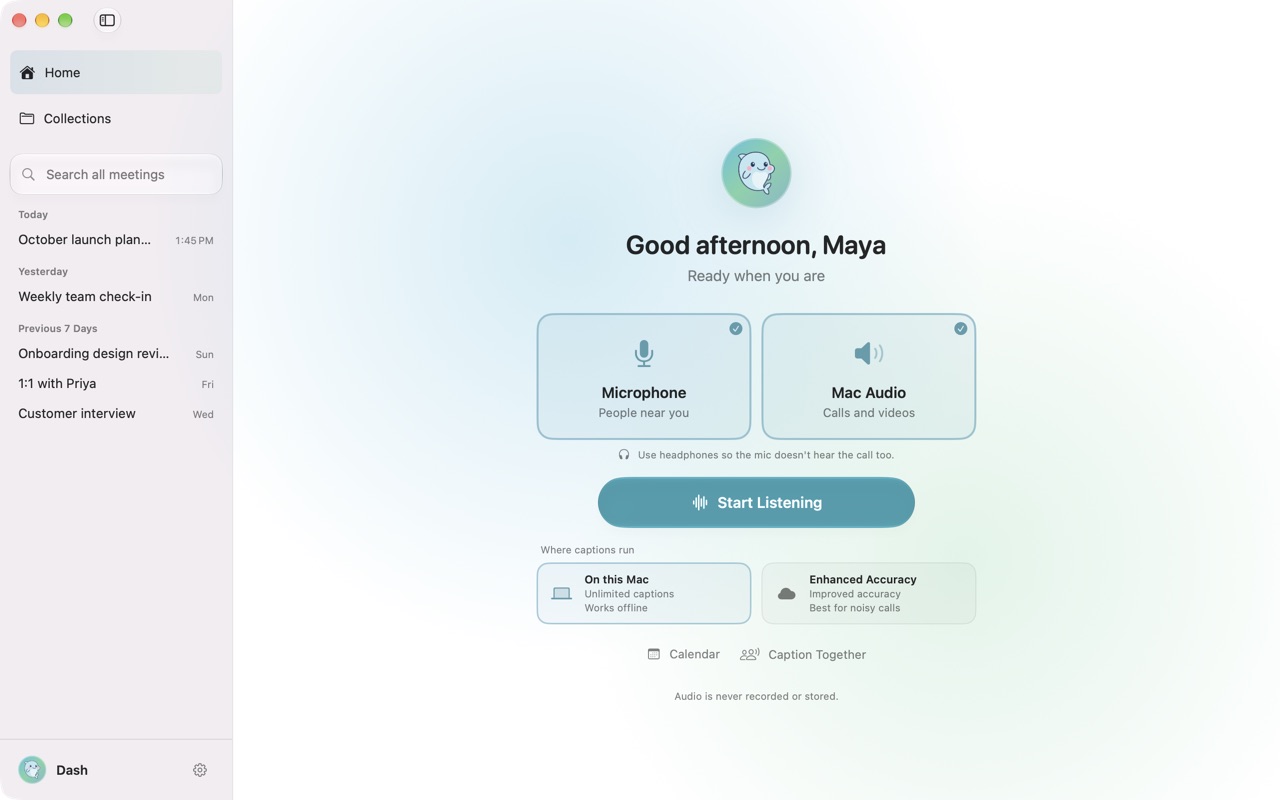
On Home, click Caption Together to share this Mac's captions or join a nearby room.
All steps as text
- On Home, click Caption Together to share this Mac's captions or join a nearby room.
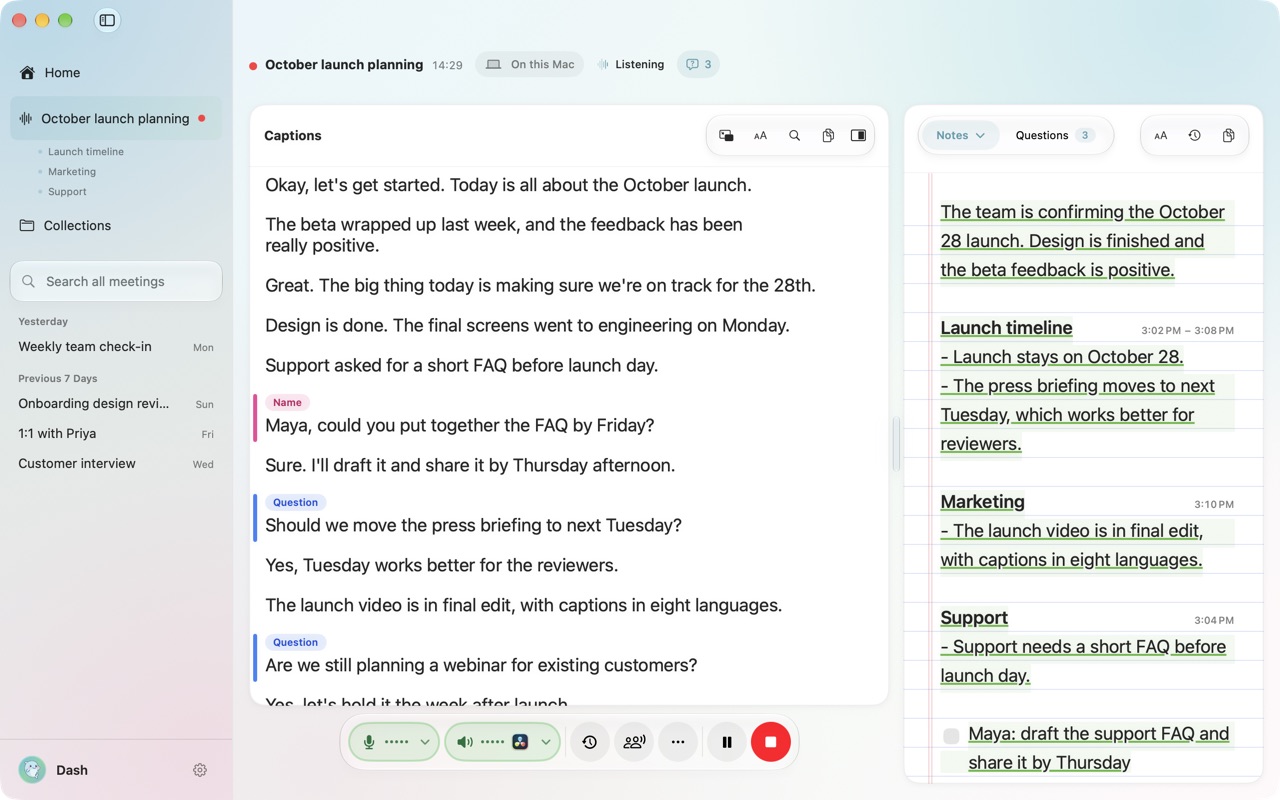
- During a meeting, click the Share button. Approve each person who asks to read along.
With Caption Together, people near you can read your live captions on their own device. They can use Hearing Buddy on a Mac, or Share Captions in Hearing Buddy on an iPhone. You approve each person first. It's free, and it doesn't need an internet connection.
Only caption text is shared. Audio is never sent.
Share your Mac's captions
- On Home, click Caption Together. During a meeting, click Share in the control bar instead.
- Under Host from this Mac, turn on Share this Mac's captions.
- Start a meeting. Your room is ready once the status says Live now.
When someone asks to join, you'll see Let them read your captions?
- Click Approve This Device to let them in, or Decline.
- Device names aren't verified, so approve only people you recognize nearby.
To stop someone reading, click Remove next to their name. To close the room for everyone, click End room.
Note: People you approve can read and save the shared caption text in their own meeting history or notes.
Read someone else's captions
- On Home, click Caption Together.
- Under Nearby live rooms, click Join next to the room you want.
- Wait while it says Waiting for approval. The host has to let you in.
- Captions appear once you're approved.
When you're done, click Leave room, or Leave & Save to keep the captions as a meeting on your Mac.
Tip: Translating captions you read from someone else is free. Translating your own captions needs Buddy+.
Allow Local Network
The first time you use Caption Together, macOS asks to let Hearing Buddy find devices on your local network. Click Allow. If you didn't:
- Open System Settings > Privacy & Security > Local Network.
- Turn on Hearing Buddy.
- Go back to Hearing Buddy and try again.
Can't find a room?
- Both people need to be close by, with Wi-Fi and Bluetooth on. You don't need to be on the same Wi-Fi network.
- The host must be sharing captions and have a meeting or session running.
- If you see This Buddy needs a compatible Share Captions version, update Hearing Buddy on both devices.
More help: Can't find or connect to a nearby buddy.
Last updated November 24, 2026.
Still need help?
Email [email protected]. A real person on our small team reads every message.