Get a tap when someone says your name or asks a question
With Buddy+, your buddy taps you and flashes the screen when someone says your name or asks a question. Turn it on in Settings or from the Customize menu.
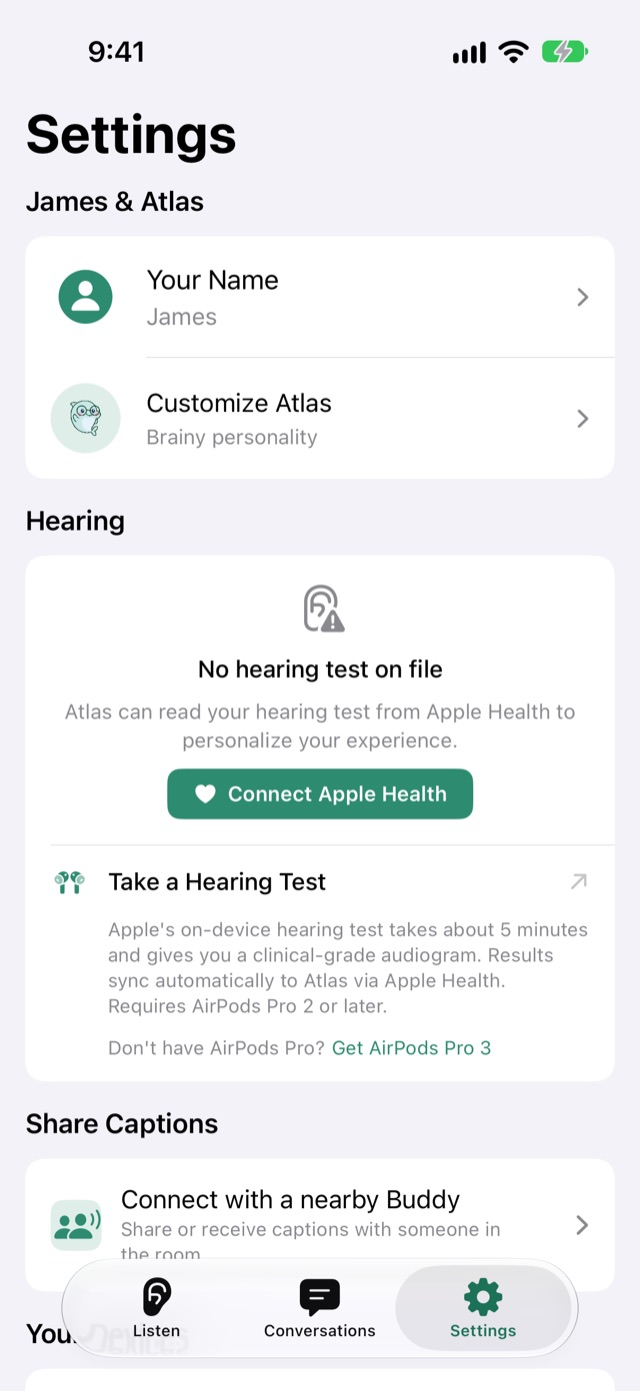
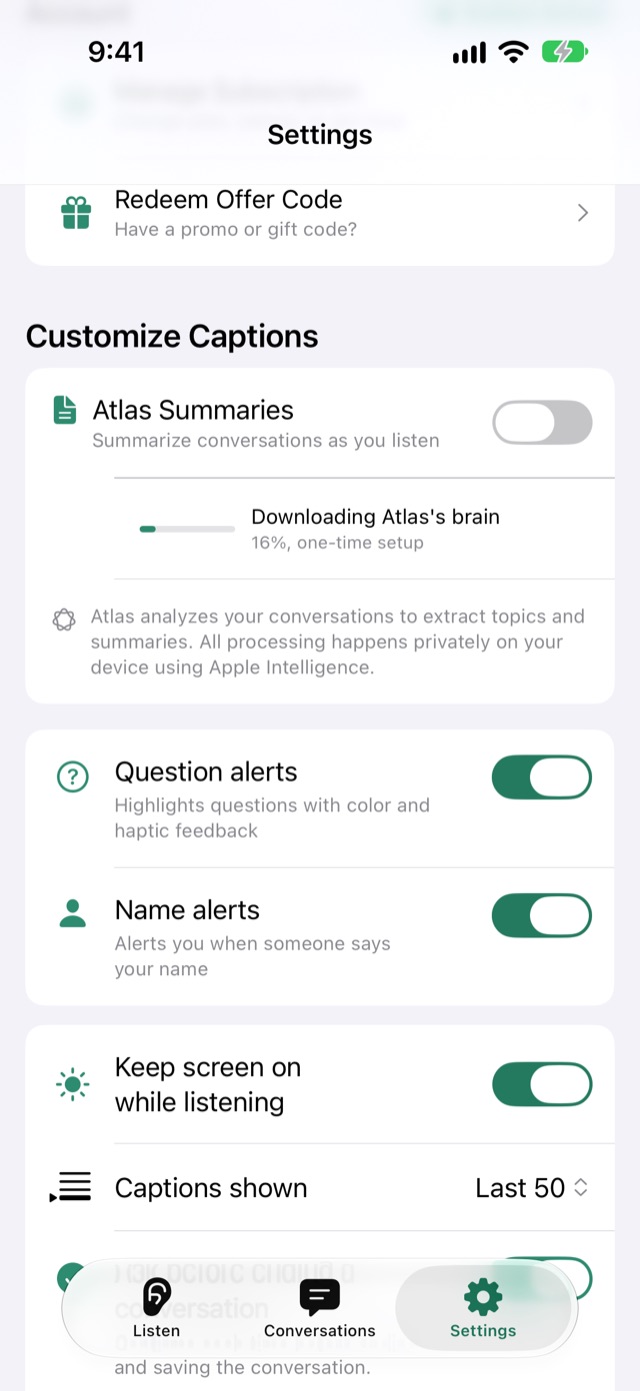
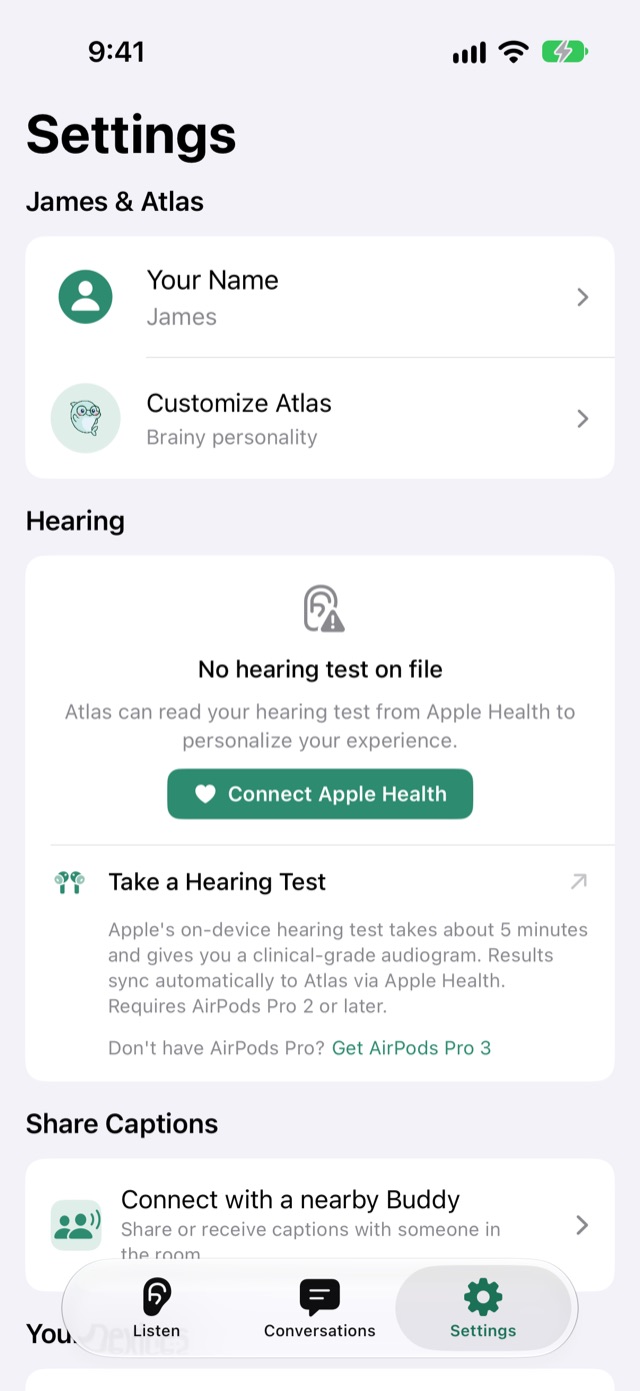
Step 1 of 3
Tap the Settings tab.
All steps as text
- Tap the Settings tab.
- Scroll down to Question alerts and Name alerts. Turn them on.
- Name alerts need your name. Tap Your Name to set it and add nicknames.
With Buddy+, your buddy can tap you when someone says your name or asks a question, so you know when a conversation turns to you. Both alerts are on by default once you have Buddy+. You can turn them on or off in Settings, or from the Customize menu during a session.
Buddy+: Name and question alerts come with Buddy+. If you already pay but the switches look locked, see Restore Buddy+.
Turn alerts on or off in Settings
- In Hearing Buddy, tap the Settings tab.
- Scroll to Customize Captions.
- Turn Question alerts on or off. It highlights questions with color and a tap.
- Turn Name alerts on or off. It alerts you when someone says your name.
Turn alerts on or off during a session
- Tap the sliders button at the top right of the screen.
- Turn Alerts on or off. This switch turns both name and question alerts on or off together.
Name alerts need your name
Your buddy can only listen for your name if it knows it. Add your name, plus any nicknames or spellings people use, in Settings, then Your Name. See Add your name, nicknames and spellings.
What you'll feel and see
- A tap. Your iPhone gives a short vibration. Keep the phone in your hand or on your lap if you want to feel it.
- A glow. The edges of the screen light up: pink for your name, blue for a question.
- A marked caption. The caption line gets a colored bar on the left, labeled Name or Question.
- In the card. Your buddy's card lists the alert, for example "Heard your name", with how long ago it happened.
- On the Lock Screen. The Live Activity shows when your buddy heard your name or a question.
When the app isn't on screen
If you switch to another app or lock your phone while a session is running, name alerts arrive as a notification. This needs notification permission:
- In Hearing Buddy, tap the Settings tab.
- Under Permissions, check that Notifications says Allowed. If not, tap it and turn on notifications in your iPhone's Settings.
Question alerts show inside the app and on the Lock Screen Live Activity, but don't send a notification.
Feel it on your wrist
If you have an Apple Watch, it can tap you for your name and for questions, even when your phone is in a bag. See Set up Apple Watch taps.
Still not getting alerts?
- Make sure a session is running. Alerts only work while your buddy is listening.
- Check that your name is set and spelled the way it sounds.
- Add the ways your name gets misheard to your spellings list.
- Make sure Buddy+ is active on this Apple Account.
If none of that helps, contact support.
Last updated November 24, 2026.
Still need help?
Email [email protected]. A real person on our small team reads every message.