Set up Apple Watch taps
With Buddy+, your Apple Watch taps your wrist when someone says your name or asks a question while Hearing Buddy is listening on your iPhone. You don't need an Apple Watch to use Hearing Buddy.
Step 1 of 2
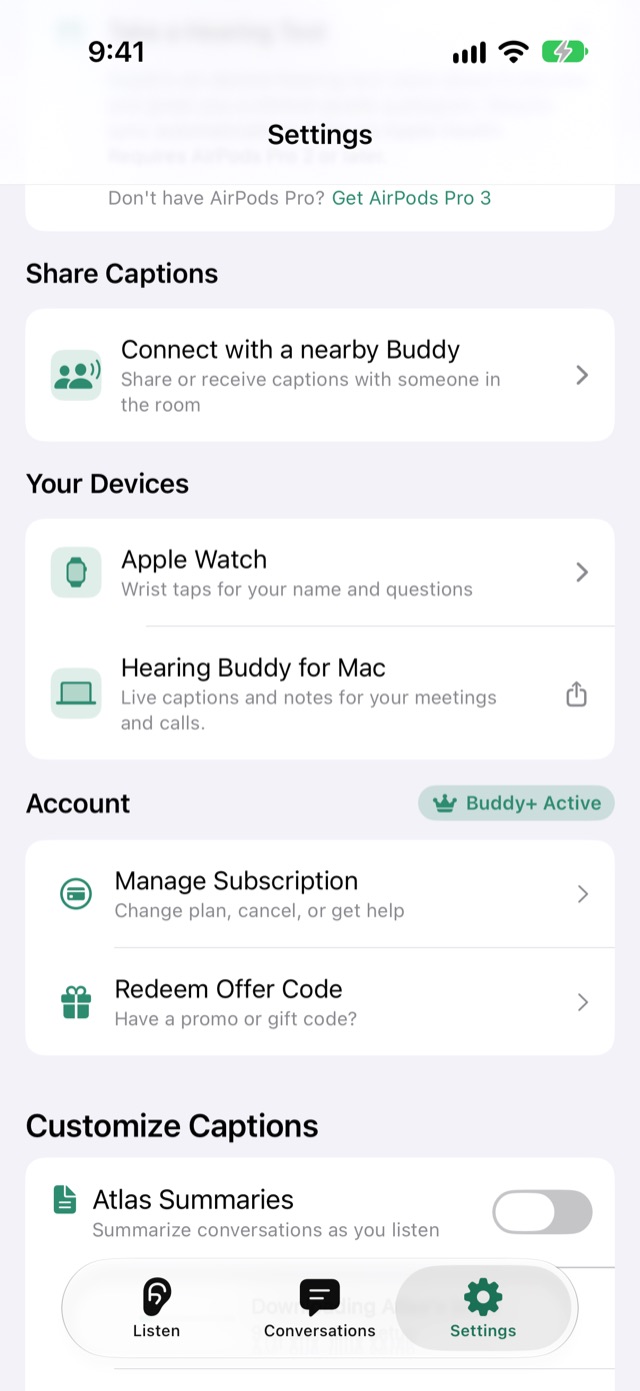
In Settings, under Your Devices, tap Apple Watch.
All steps as text
- In Settings, under Your Devices, tap Apple Watch.
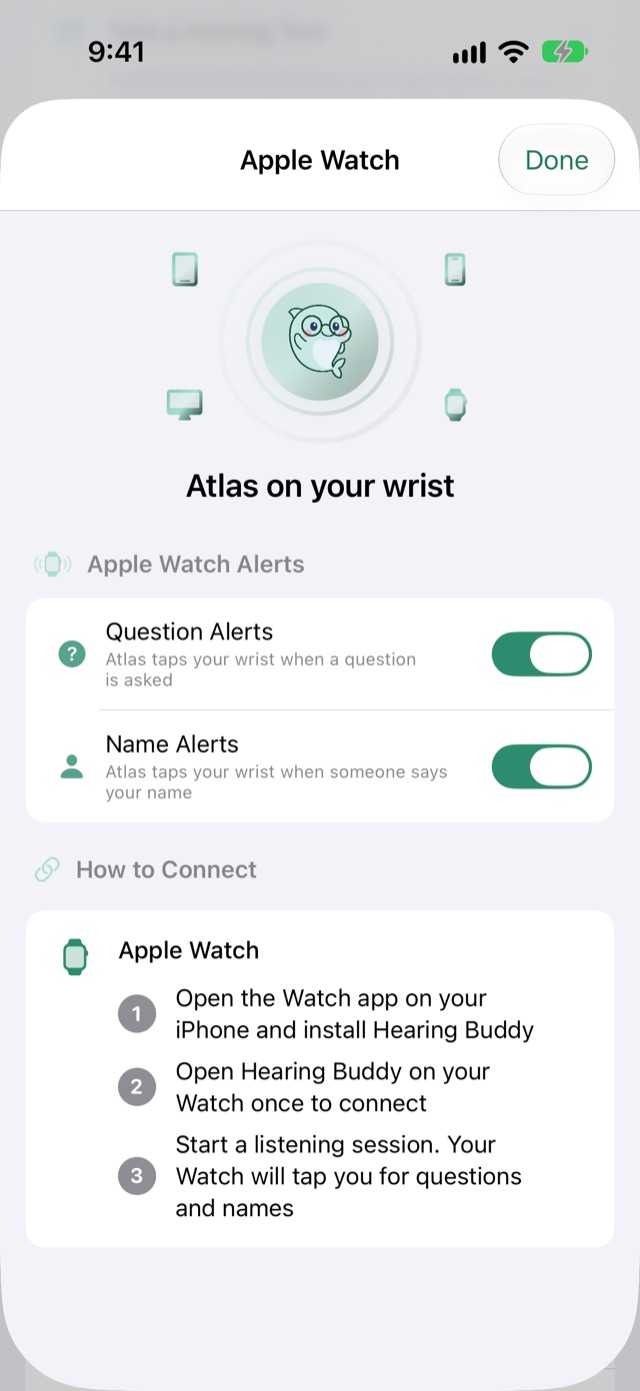
- Choose which alerts tap your wrist, then follow How to Connect to install the watch app.
Hearing Buddy on Apple Watch taps your wrist when someone says your name or asks a question, so you notice even when you're not looking at your phone. It works with Hearing Buddy on your iPhone and needs Buddy+.
Note: You don't need an Apple Watch to use Hearing Buddy. Captions, alerts and everything else work on your iPhone alone.
Set it up
- On your iPhone, open the Watch app, find Hearing Buddy under Available Apps, and tap Install.
- On your Apple Watch, open Hearing Buddy once. This connects it to your iPhone.
- On your iPhone, start listening in Hearing Buddy. Your watch will tap you for questions and your name.
For name taps, make sure your name is set in Hearing Buddy on your iPhone. See Add your name, nicknames and spellings.
Choose which taps you get
On your iPhone:
- In Hearing Buddy, tap the Settings tab.
- Under Your Devices, tap Apple Watch.
- Under Apple Watch Alerts, turn Question Alerts and Name Alerts on or off.
On your watch: open Hearing Buddy, tap the gear, and turn Question Haptics or Name Haptics on or off. These stay in step with the iPhone settings.
What you'll see on your watch
- Before a session: your buddy and a Start Listening button, which starts listening on your iPhone. Hearing Buddy needs to be open on your iPhone for this to work. If it isn't, your iPhone shows a notification: tap it to open Hearing Buddy and start. If the watch can't reach your phone, it says to open Hearing Buddy on your iPhone.
- While listening: a Stop button, and a card for the latest alert: a question, or a mention of your name, with a few words of what was said.
- Summaries: tap the page icon at the top left to read recent summaries, newest first.
Your watch shows alerts and summaries, not live captions. Read the full captions on your iPhone.
Taps, not notifications
Alerts arrive as wrist taps, one pattern for questions and another for your name. They don't appear as notification banners.
Add Hearing Buddy to your watch face
Add the Open Hearing Buddy complication to your watch face to open the app with one tap.
Things to know
- Your watch works with Hearing Buddy on your iPhone only. Hearing Buddy for Mac doesn't send watch taps.
- Keep your iPhone nearby with Bluetooth on.
- Without Buddy+, the Apple Watch setting shows a Buddy+ screen instead.
Not getting taps? See Apple Watch isn't tapping me.
Last updated November 24, 2026.
Still need help?
Email [email protected]. A real person on our small team reads every message.