Add your name, nicknames and spellings
Tell your buddy your name and every version people use, so name alerts catch it. Add nicknames and misheard spellings in Settings, under Your Name.
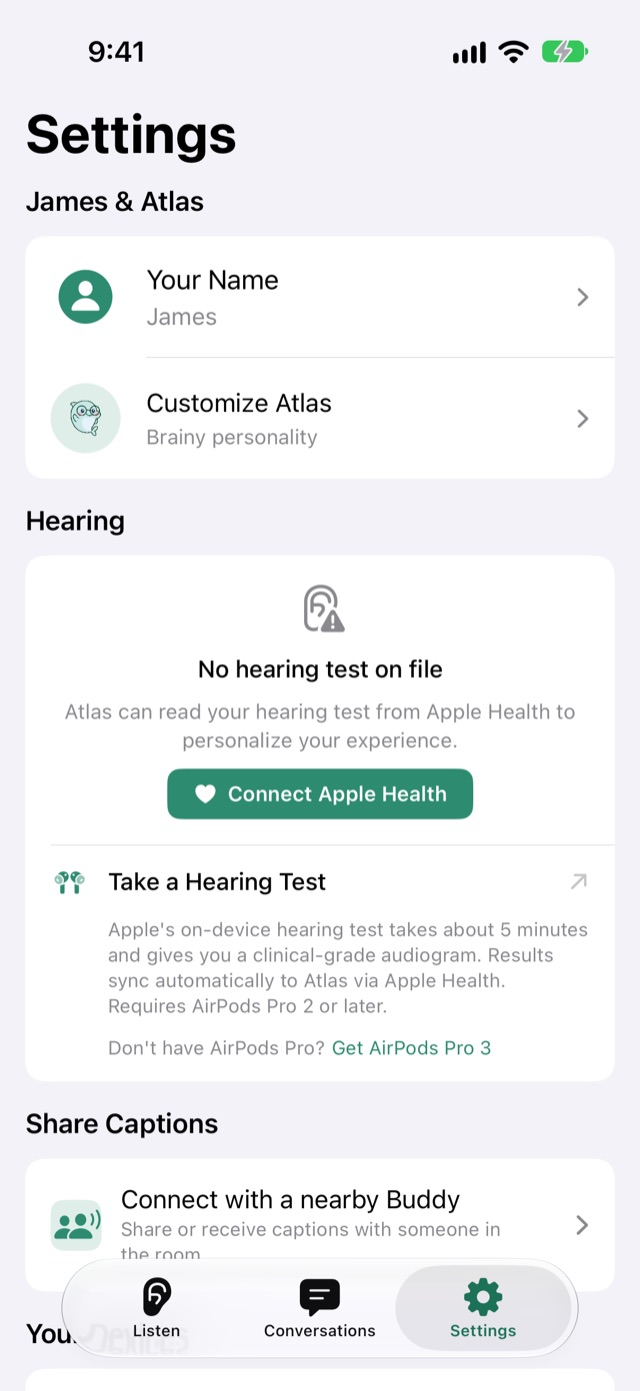
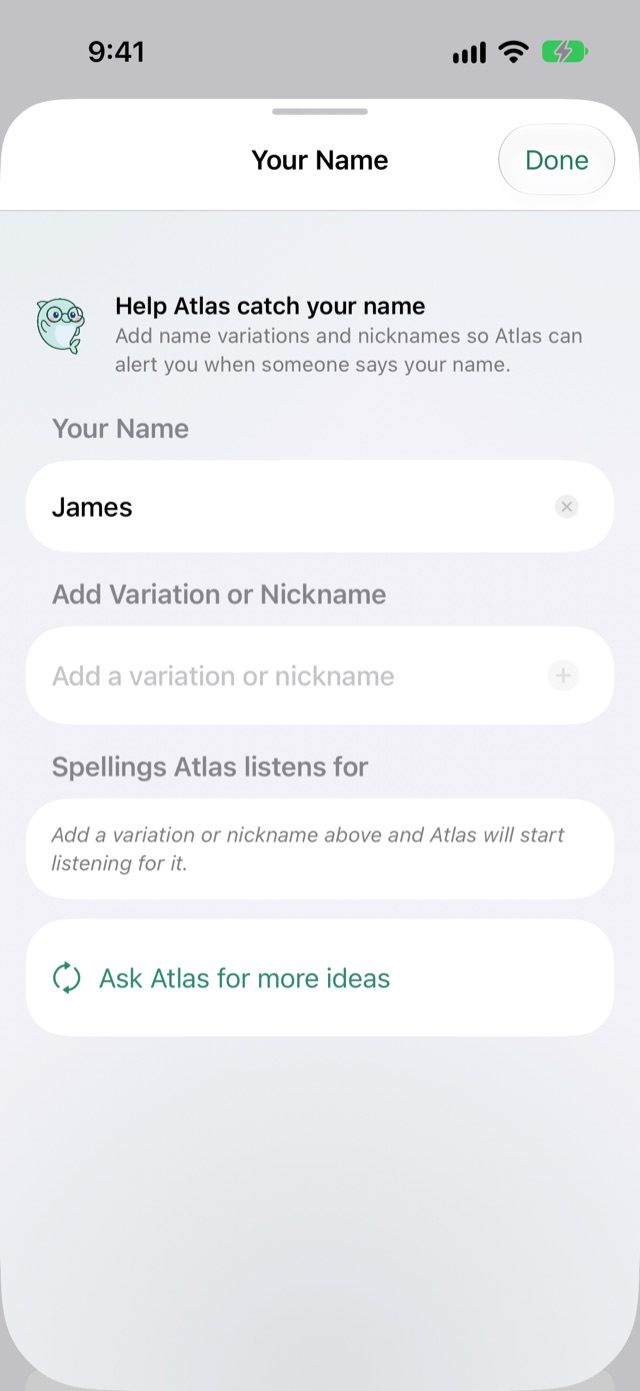
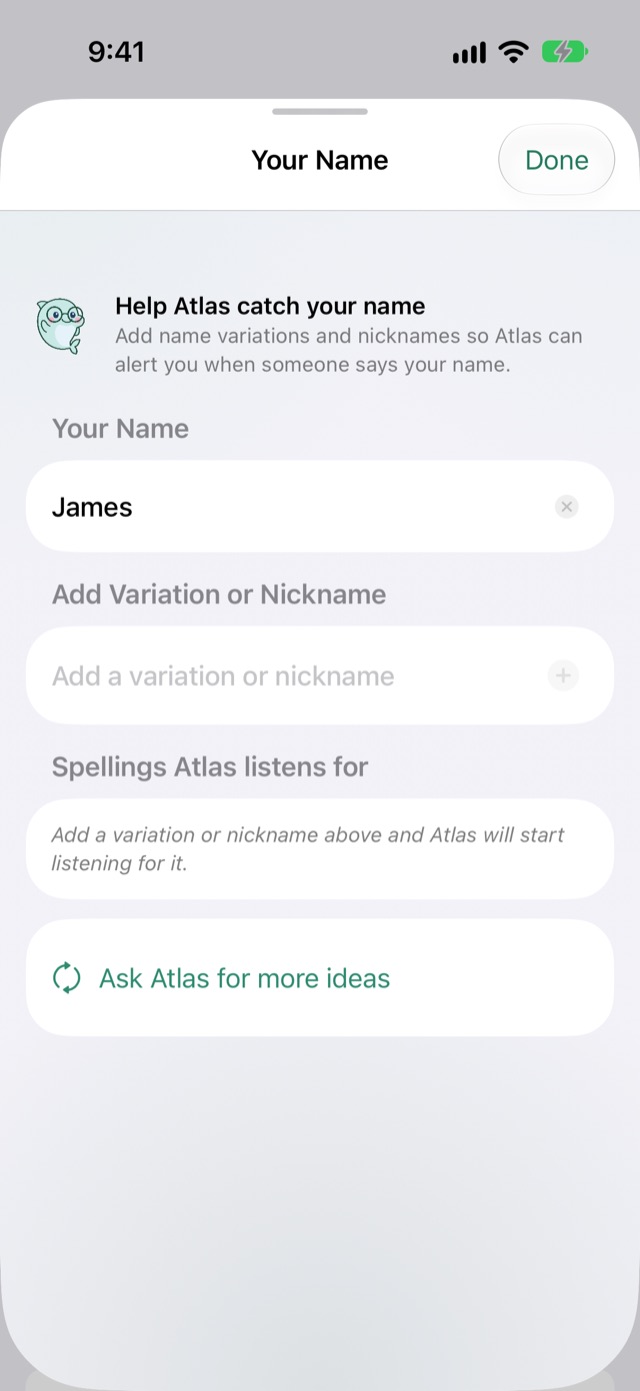
Step 1 of 3
In Settings, tap Your Name.
All steps as text
- In Settings, tap Your Name.
- Type a nickname or another spelling your buddy should listen for, then add it.
- Every spelling in the list sets off a name alert. Swipe one left to remove it. Tap Done when you're finished.
Your buddy listens for your name, and for every nickname and spelling on your list. Add them in Settings, then Your Name. The more versions you add, the more often name alerts catch you.
Note: The app shows your buddy's name in some labels below where this article says "Buddy".
Set your name
- In Hearing Buddy, tap the Settings tab.
- In the section that shows your name and your buddy's name, tap Your Name.
- Tap the field under Your Name and type your name.
- Tap Done on the keyboard. Your name saves on its own.
- Tap Done at the top when you're finished.
On most iPhones, your buddy then suggests a few common spellings and adds them to the list for you.
Add a nickname or another spelling
People may call you by a short name, a family name or a title. Add each one.
- On the Your Name screen, tap the field under Add Variation or Nickname.
- Type the nickname or spelling.
- Tap the plus button.
Everything you add shows under Spellings Buddy listens for.
Get more ideas
Tap Ask Buddy for more ideas and your buddy suggests more spellings. This button only shows on iPhones that can make suggestions.
Remove a spelling
Swipe left on a spelling in the list, then tap Delete.
Note: If you change your name in the field at the top, the old spellings are cleared so the list doesn't mix two names. Add your nicknames again after a name change.
If your name keeps getting missed
Captions sometimes hear a name as a different word. A short name like "Jen" might show up as "Gem" or "Jan".
- Add the word it's misheard as. Look at your saved conversations for how your name came out, then add that spelling to the list.
- Keep the phone out of your pocket. A covered microphone muffles voices. Put the phone on the table, screen up, near the people talking.
- Try Enhanced Accuracy. Cloud captions are better at names, and you can add names to Buddy's Dictionary. See Teach Buddy names and special words.
For more on clearer captions, see Get more accurate captions.
Do I need Buddy+?
You can set your name on the free version. Name alerts, the taps and flashes when someone says your name, come with Buddy+. See Get a tap when someone says your name.
Last updated November 24, 2026.
Still need help?
Email [email protected]. A real person on our small team reads every message.