Change your buddy, its name or the app icon
Pick a different buddy, give it a new name, and match your Home Screen icon. Find it in Settings under Customize, or in the Customize menu during a session.
Step 1 of 2
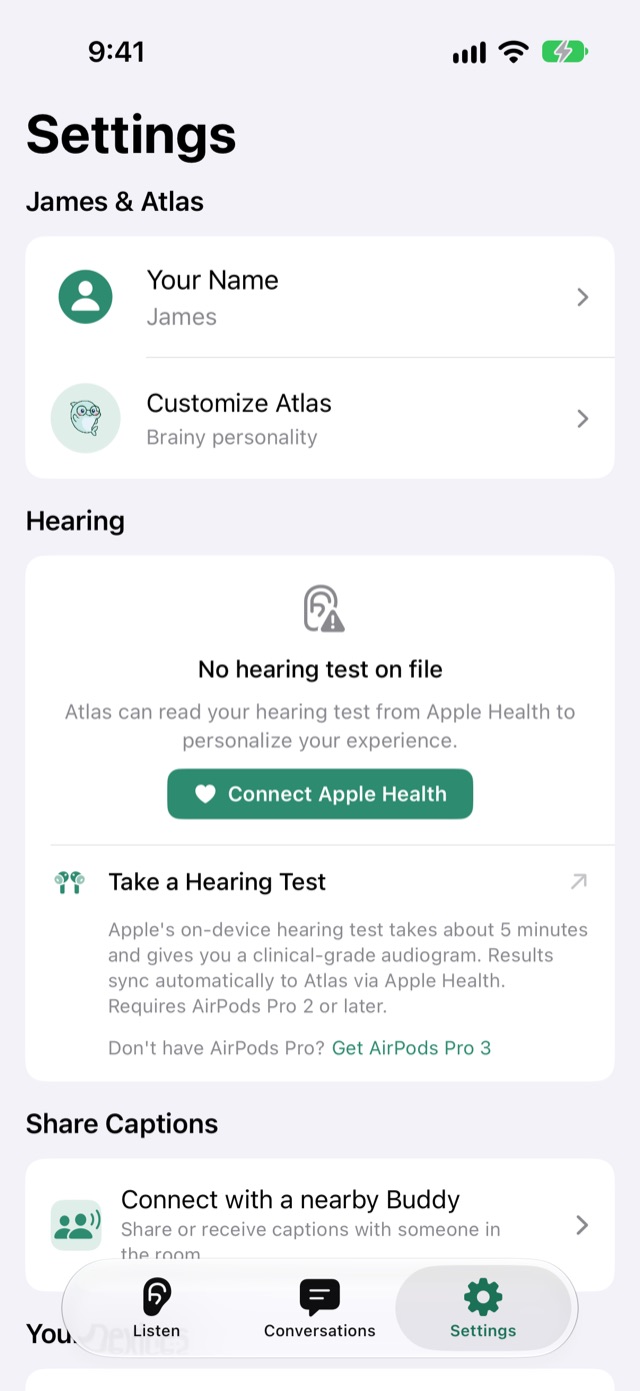
In Settings, tap Customize under your name.
All steps as text
- In Settings, tap Customize under your name.
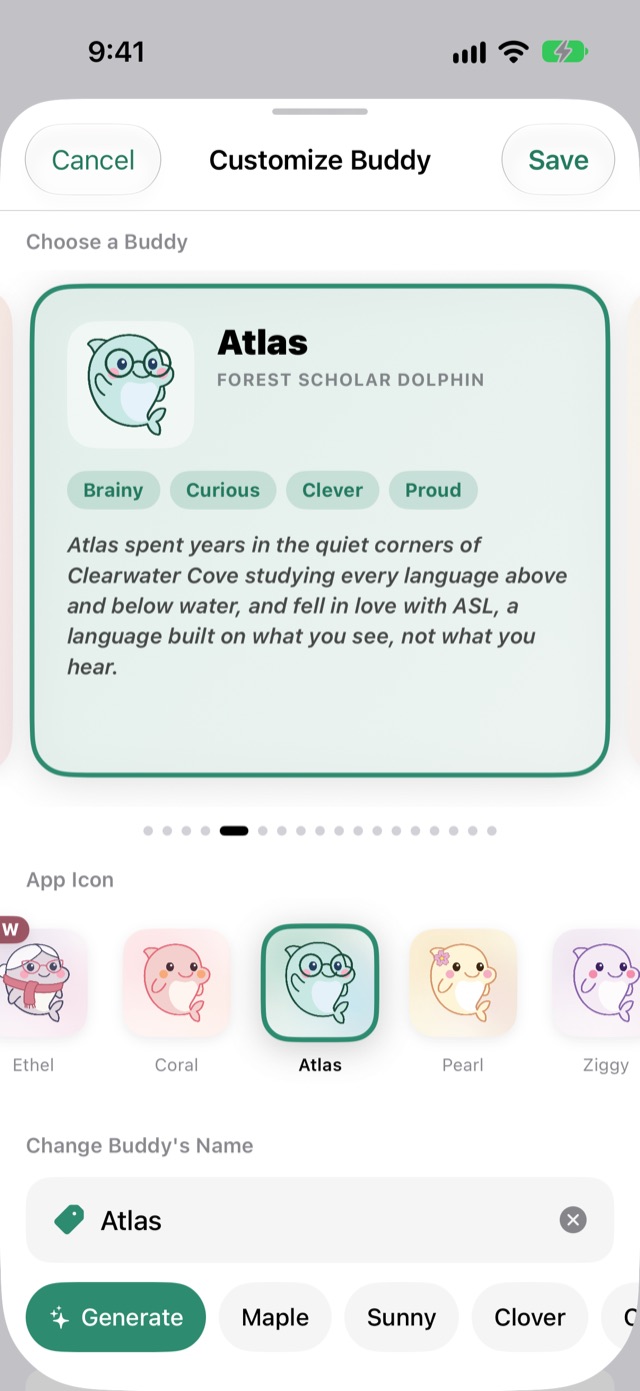
- Swipe through the buddies and pick one. You can also rename your buddy and change the app icon here.
You can switch to a different buddy, rename it, and change the Hearing Buddy icon on your Home Screen. It all happens on one screen, and nothing else changes: your captions, settings and saved conversations stay the same.
Open the buddy screen
From Settings:
- Tap the Settings tab.
- In the section with your name and your buddy's name, tap Customize Buddy. (The app shows your buddy's name here instead of "Buddy".)
Or, during a session:
- Tap the sliders button at the top right of the screen.
- Tap Change Buddy.
Pick a buddy
- Under Choose a Buddy, swipe through the buddies.
- Tap the one you want.
- Tap Save.
Picking a buddy also fills in that buddy's own name. If you'd like a different name, rename it before you tap Save (see below).
Free buddies
Dash, Coral, Atlas, Pearl, Prism and Rowen.
Buddy+ buddies
Ziggy, Reef, Sunny, Fern, Lumi, Luna, Paige, Chalkie, Celeste, Goldie, Ethel and George. These show a lock if you're on the free version. Tapping one shows the Buddy+ screen.
New buddies are added from time to time and show a New badge.
Rename your buddy
- Open the buddy screen as above.
- Pick your buddy first, if you're changing it.
- Under Change Buddy's Name, tap the name field and type a new name. Names can be up to 20 characters.
- Not sure? Tap Generate for name ideas, then tap one you like.
- Tap Save.
The new name shows up across the app, in alerts and on your Lock Screen. If you clear the name and save, your buddy goes back to its own name.
Change the app icon
The icon on your Home Screen matches your buddy. The App Icon row shows each buddy's icon.
- Tap an icon in the App Icon row. This also picks that buddy.
- Tap Save.
Your iPhone shows a short message that the icon has changed. Tap OK.
Changing buddies doesn't change your plan
All buddies caption the same way. A Buddy+ buddy doesn't add features on its own, and switching back to a free buddy doesn't cancel anything. See What's free and what Buddy+ adds.
Last updated November 24, 2026.
Still need help?
Email [email protected]. A real person on our small team reads every message.