Hearing Buddy for Mac
Captions and notes for every meeting on your Mac
Hearing Buddy for Mac captions your calls, videos and the people in the room, right on your Mac. You don't need an iPhone, and there's no bot joining your meeting.
Free download. Requires macOS 27.
One choice to start
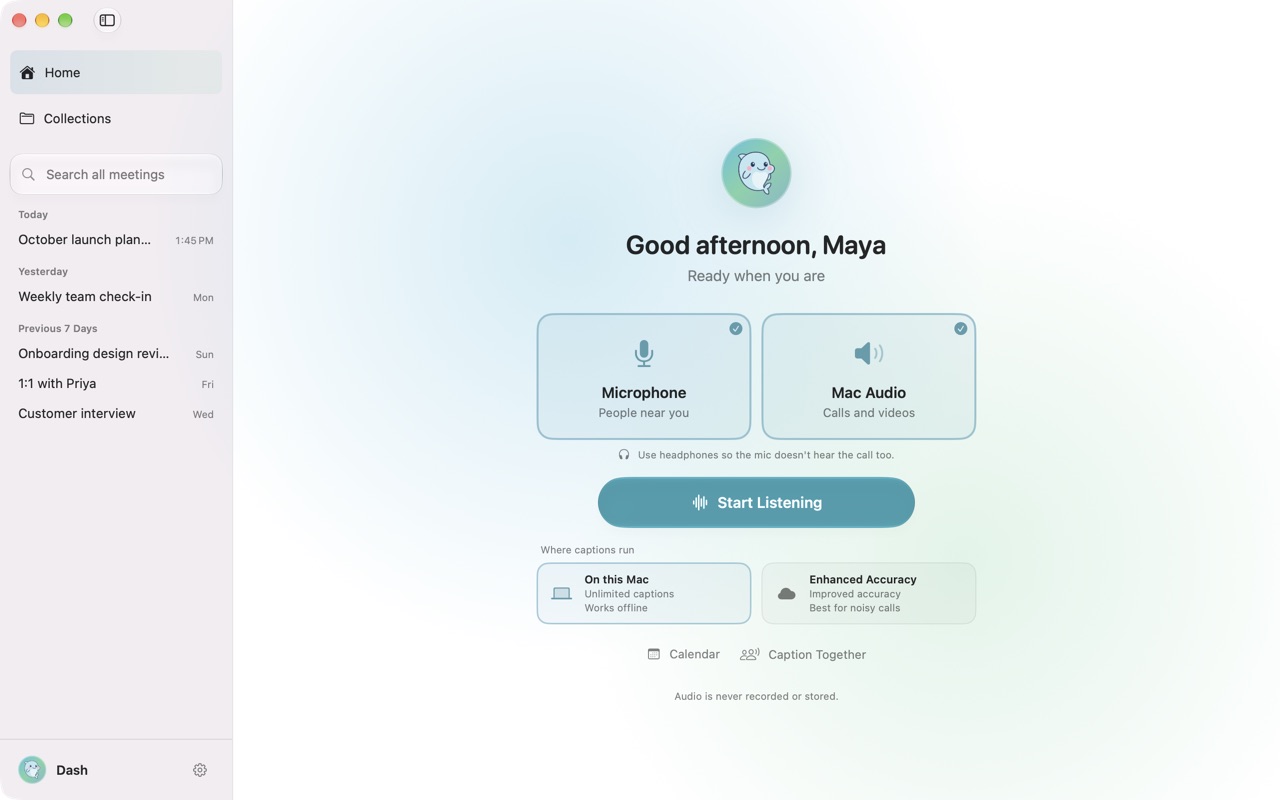
Tell Buddy what to listen to: the call on your Mac, the room around you, or both. Then click Start Listening. When a meeting app starts using your microphone, Buddy offers Caption This Meeting, so it's one click from there.
- MicrophoneThe people near you. Use it in a room, at your desk or at the doctor’s office.
- Mac AudioSound playing on your Mac: Zoom, Teams, FaceTime, webinars and videos.
- BothA call and the room together. Wear headphones so the mic doesn’t hear the call twice.
Notes that keep up with the meeting
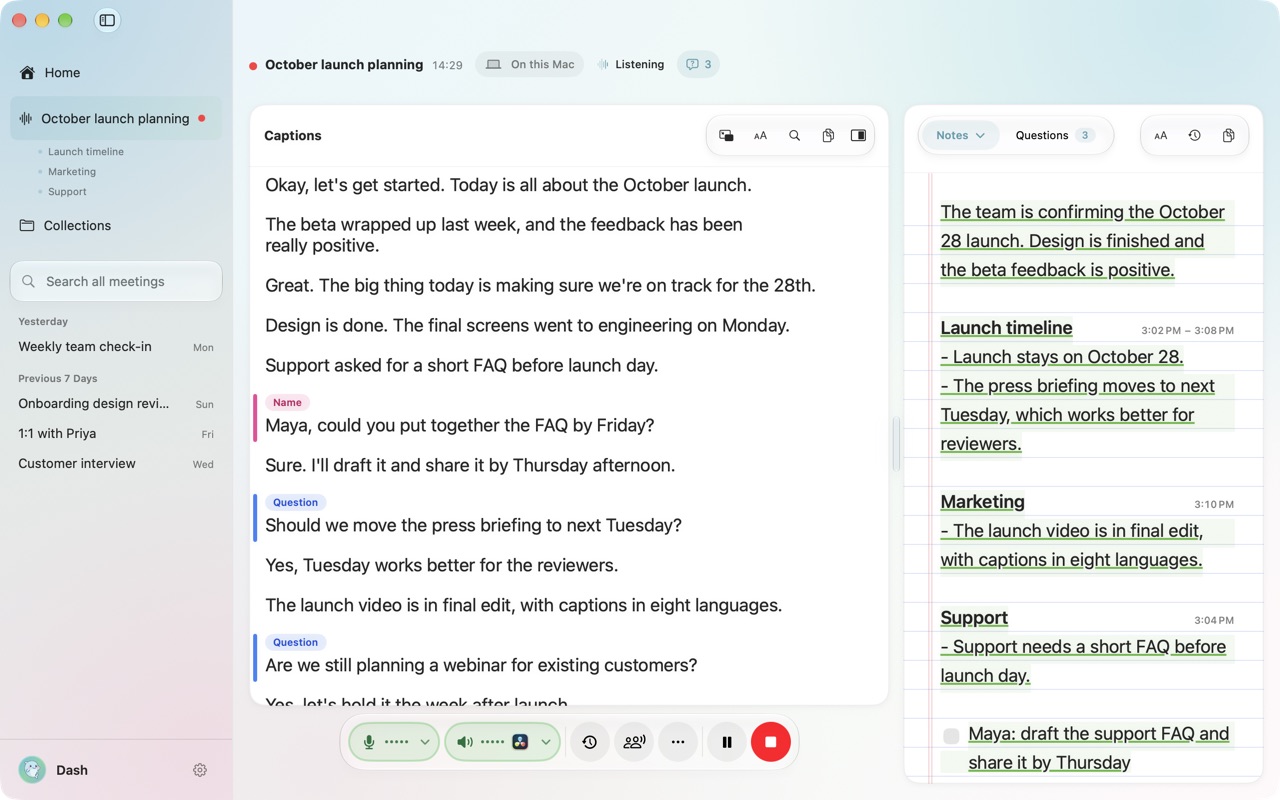
Buddy turns the captions into notes while you listen, so you can stay in the conversation. On the Mac, all of this is free.
- Buddy’s NotesNotes fill in as the meeting goes, with to-dos as checkboxes. Add your own lines and they stay part of the same document.
- RecapLost the thread? Buddy sums up the last 90 seconds in a few lines, even from inside another app.
- Catch UpLooked away for a minute? Buddy sums up what you missed, up to the last 10 minutes.
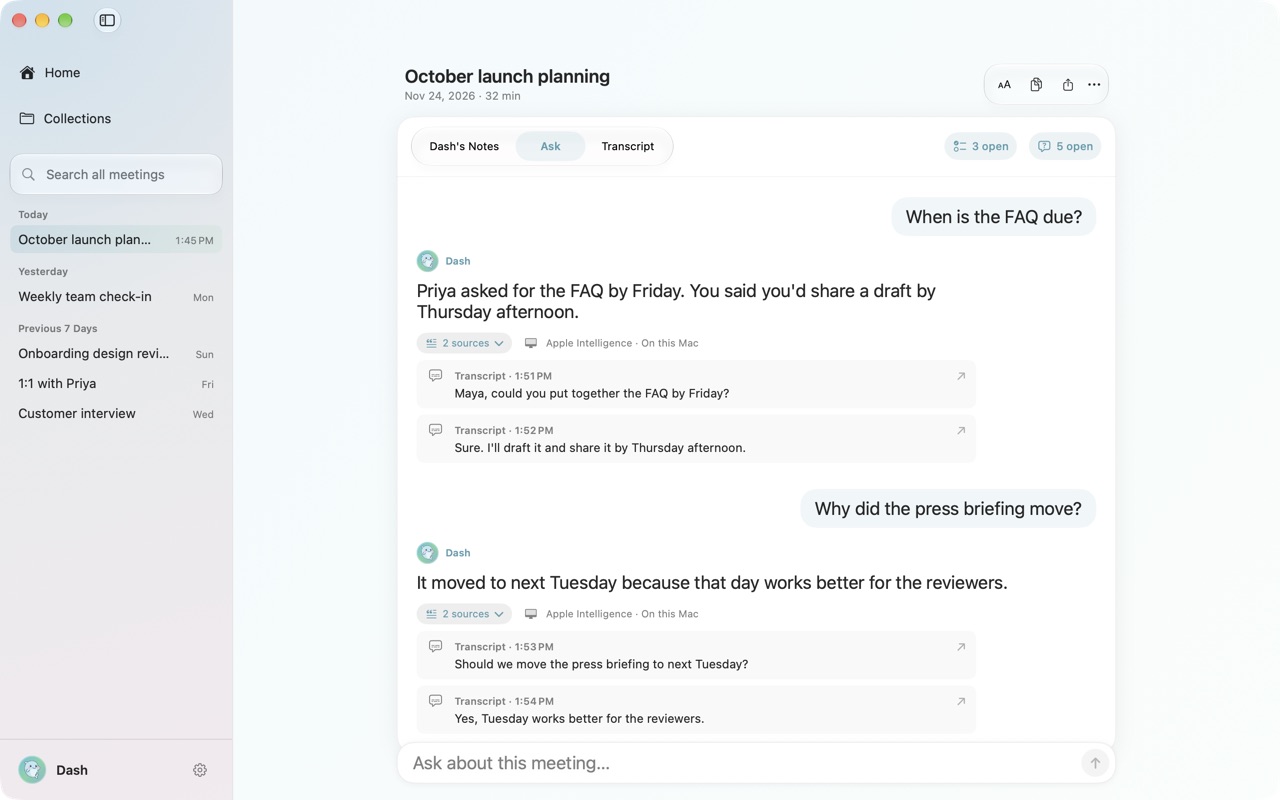
- AskAsk a saved meeting “What was decided?” and get an answer that shows the transcript lines it came from.
Notes, recaps and answers need Apple Intelligence turned on and an internet connection. Captions don't need either one.
Captions on top of your call
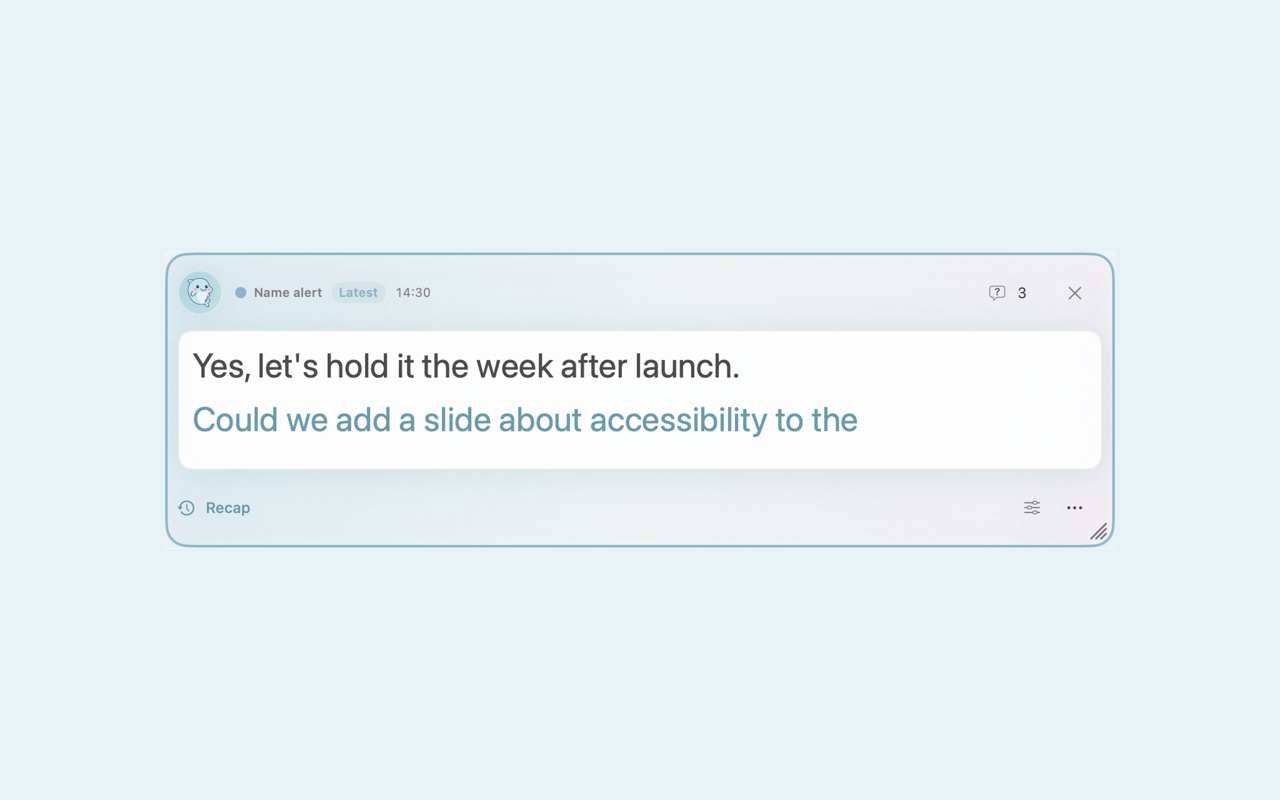
Press ⇧⌘B and captions float in a small window over Zoom, slides or anything else. Drag it where you like and make the text bigger.
Caption Together
Share your Mac's captions with people nearby, on their own Mac or iPhone, or read theirs. You approve each person first. Only caption text is shared, and it works without internet.
Private by design
- Audio is never recorded or stored. Only the caption text is kept.
- Captions are made on your Mac. Once your language has downloaded, they work without an internet connection.
- Notes, recaps and answers are written with Apple Private Cloud Compute. Only meeting text is sent, never audio, and Apple doesn’t keep the request. Meeting titles are written on your Mac when possible.
- Saved meetings stay on this Mac. They don’t sync to other devices.
Enhanced Accuracy, only if you choose it
For noisy calls you can turn on Enhanced Accuracy, which streams one audio source to Muse Voice Transcribe by Meta for clearer captions. It's off by default on the Mac, and the first time the app explains what is sent and asks you to allow it. Meta doesn't keep any of it. If the connection drops, captions keep going on your Mac.
Free on the Mac, with Buddy+ if you want more
Free
- Unlimited live captions
- Buddy’s Notes, Recap, Catch Up and Ask
- Saved meetings, search and export
- Caption Together, including translating captions someone shares with you
- 30 minutes of Enhanced Accuracy, once
Buddy+ adds
- Name and question alerts, including banners while you’re in other apps
- Translating your own captions as you listen
- More Enhanced Accuracy time every billing period
- More buddies to choose from
Already have Buddy+ on your iPhone? One subscription covers your iPhone and your Mac with the same Apple Account. Restore it once in Settings on the Mac.
Help for the Mac app
Never miss what was said
Get Hearing Buddy for MacFree on the Mac App Store. Requires macOS 27.