Translate captions as you listen
Read captions in your own language while someone speaks another. Pick a language under Translate To in the Customize menu. Translation happens on your iPhone.
Step 1 of 3
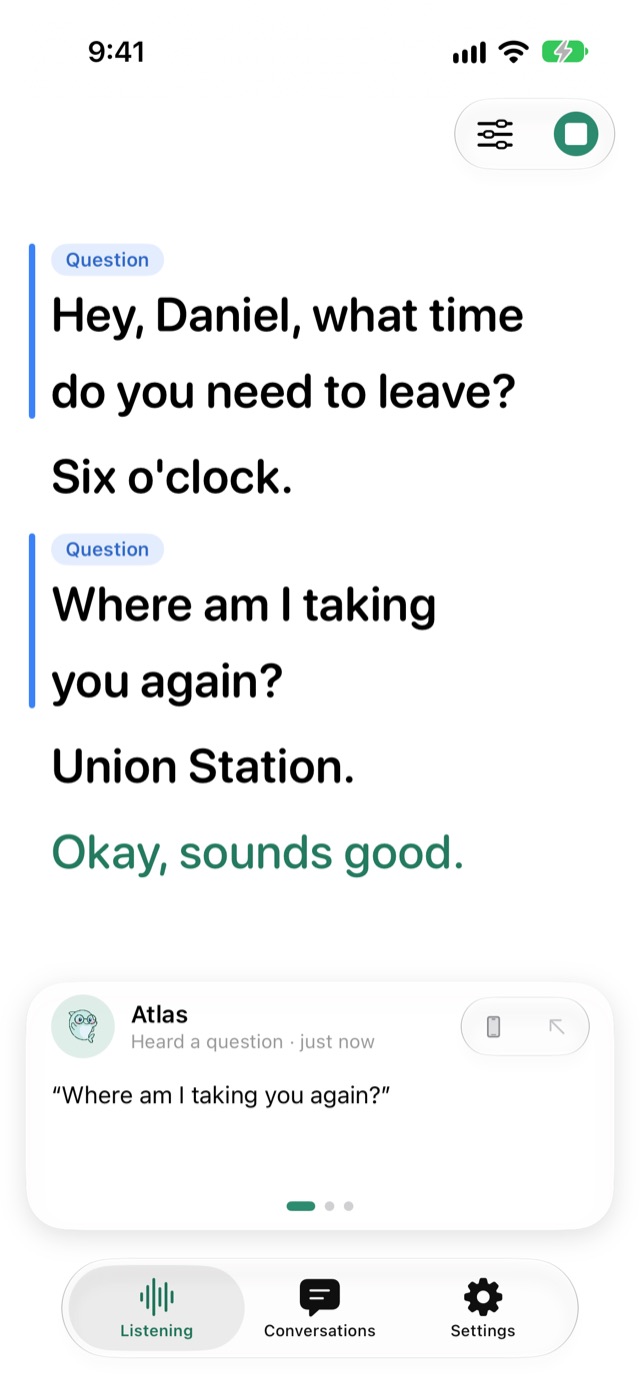
While listening, tap the sliders button at the top right.
All steps as text
- While listening, tap the sliders button at the top right.
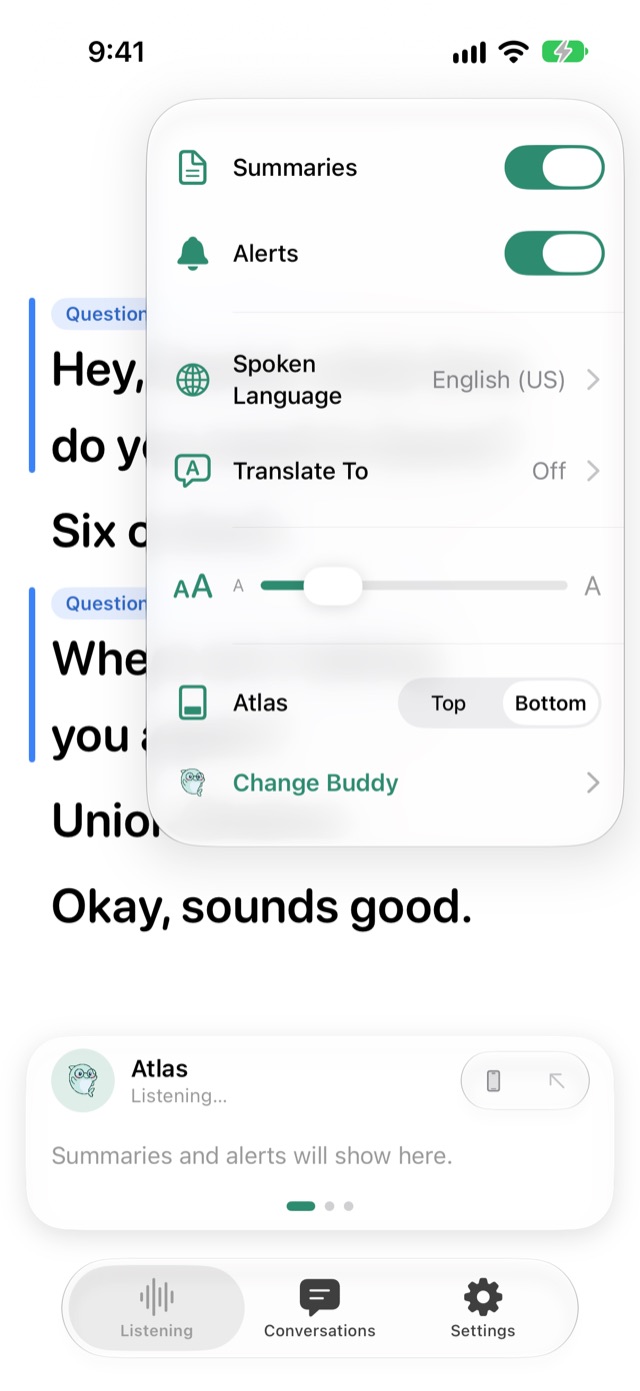
- Tap Translate To.
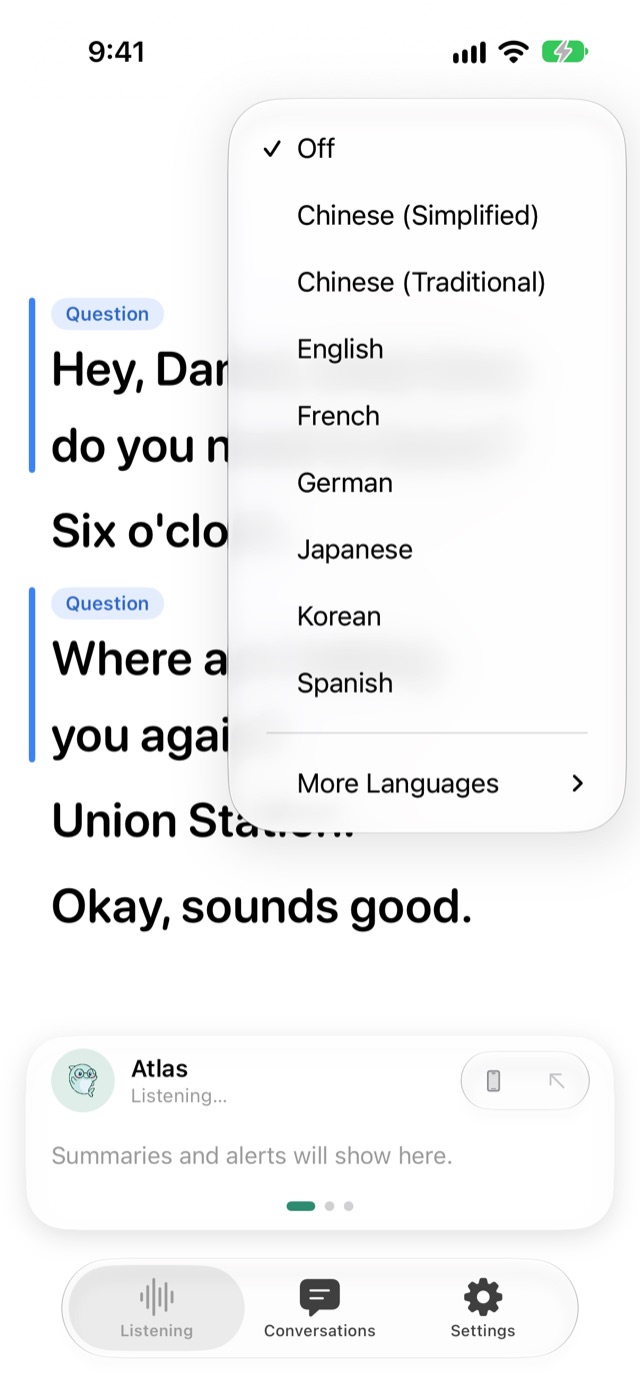
- Pick the language you want to read. Some languages download the first time.
Hearing Buddy can translate captions as people talk, so you read them in your language. Set the spoken language to what people are saying, then pick the language you want to read under Translate To. Translation happens privately on your iPhone.
Buddy+: Translating your own captions comes with Buddy+. Translating captions someone is sharing with you is free.
Turn on translation
- Start a session.
- Tap the sliders button at the top right of the screen.
- Check that Spoken Language matches what people are speaking. See Caption another language.
- Tap Translate To and pick the language you want to read. More choices are under More Languages.
New captions now show in your chosen language. Lines that were already on screen stay as they were.
To turn translation off, tap Translate To and choose Off.
See what was actually said
Tap any translated line to see the original words. Tap it again to go back to the translation. With VoiceOver, double-tap the line.
Some languages download first
Next to some languages you'll see Downloads when picked. Your iPhone downloads that language the first time you choose it, then translates on your device after that. You need an internet connection for that first download.
You may also see a language greyed out:
- Not available from a language: that pair can't be translated yet.
- Same as the spoken language: captions are already in that language.
Translating shared captions, free
If you're reading someone else's captions through Share Captions, you can translate them into your language for free, using the same Translate To menu. See Read someone else's captions on your phone.
On the free version
If you pick a language under Translate To on the free version, a card appears in the captions that says Buddy can translate your captions with Buddy+. Tap it to see Buddy+. Your captions keep coming in the spoken language.
Good to know
- Translations aren't perfect. Names, jokes and quick back-and-forth can come out oddly. If something matters, tap the line to check the original.
- Translation works on what was captioned. If a caption is wrong, the translation will be too. Clearer captions mean better translations. See Get more accurate captions.
- You can translate into 20 languages. See Which languages does Hearing Buddy support?
Last updated November 24, 2026.
Still need help?
Email [email protected]. A real person on our small team reads every message.