Start live captions
Open Hearing Buddy and tap your buddy on the Listen tab. Captions start right away and are free and unlimited.
Step 1 of 3
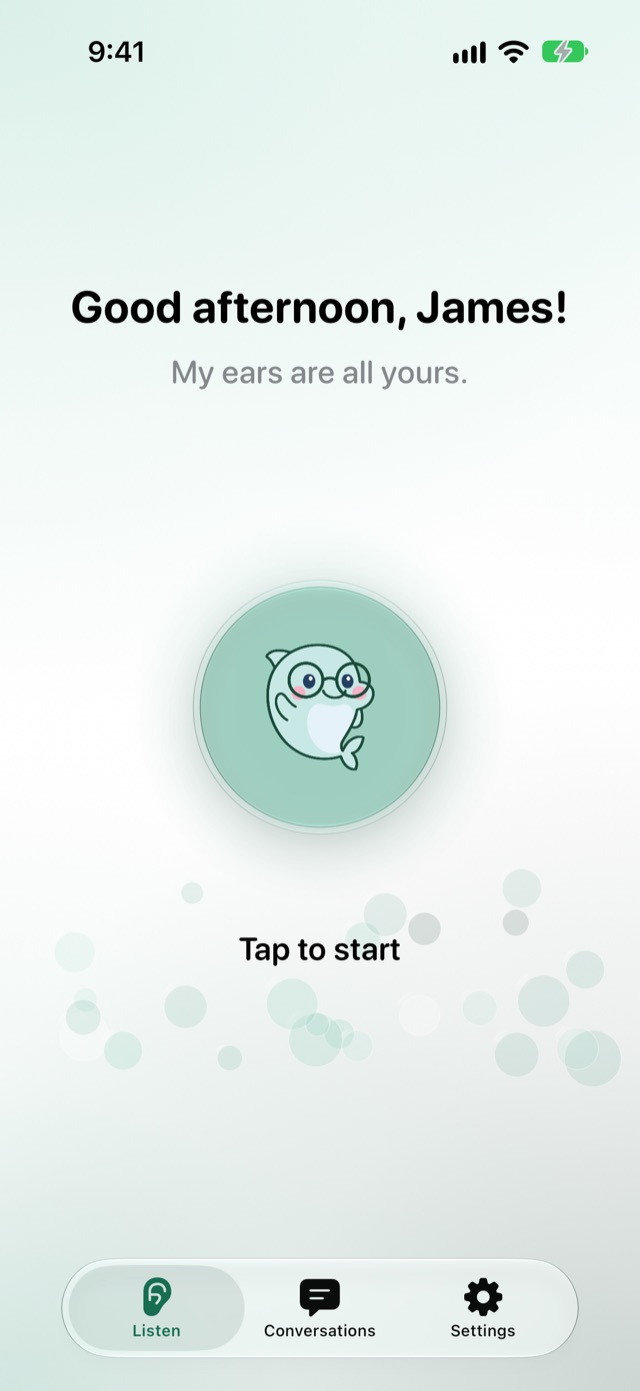
Open Hearing Buddy. On the Listen tab, tap your buddy to start listening.
All steps as text
- Open Hearing Buddy. On the Listen tab, tap your buddy to start listening.
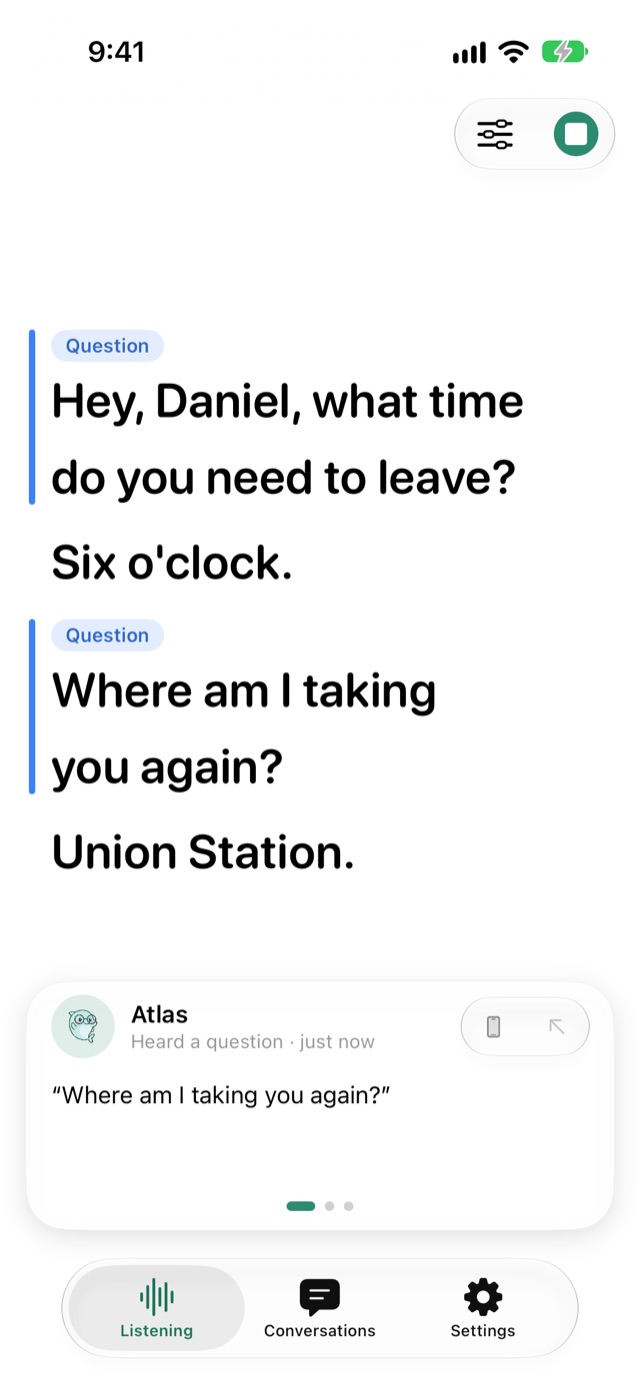
- Hold your phone near the person talking, screen up. Their words appear as captions.
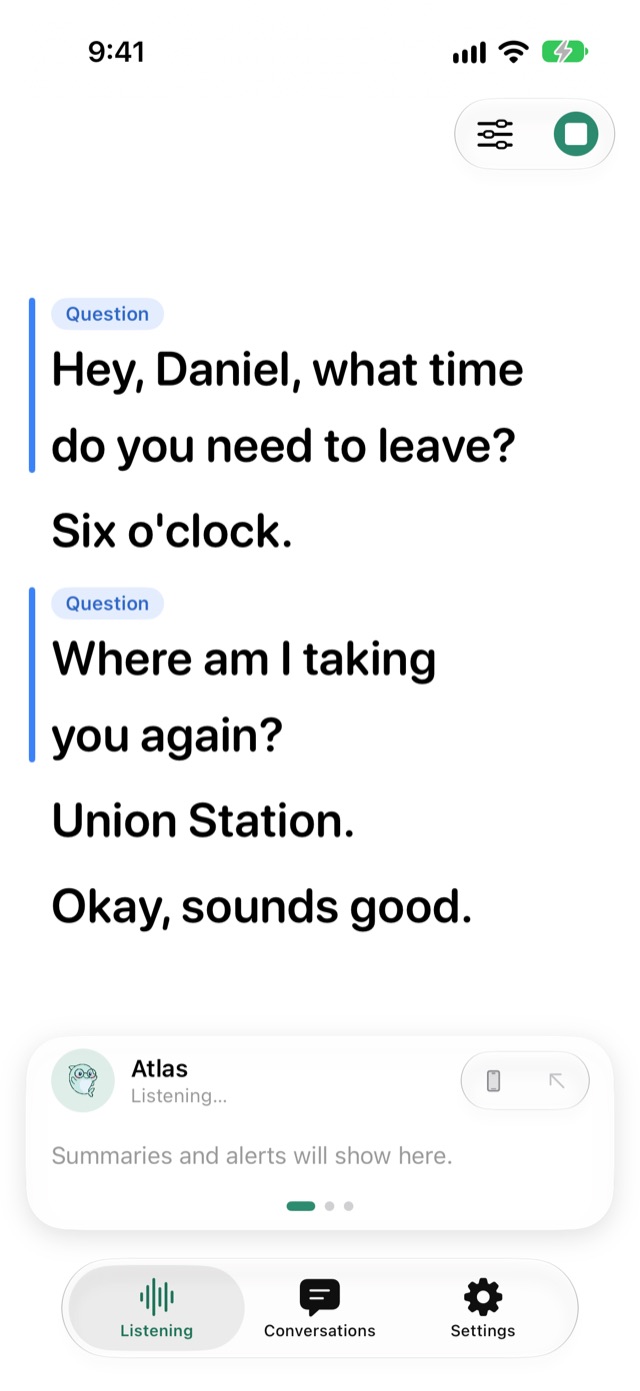
- Questions are highlighted, and your buddy taps you when someone says your name.
To start captions, open Hearing Buddy and tap your buddy in the middle of the Listen tab. Your buddy starts listening, and the words people say appear on your screen as text. Live captions are free and unlimited.
You don't need anyone else to use Hearing Buddy. Your phone listens to the room and captions everyone it can hear.
Start captions
- Open Hearing Buddy. You start on the Listen tab (the ear icon at the bottom).
- Tap your buddy, or the words Tap to start under it.
- If iPhone asks whether Hearing Buddy can use the microphone, tap Allow. Captions can't work without it.
- Hold the phone near the people talking. Their words appear on screen as they speak.
The first session on a new phone can take a minute to get ready. You may see a message like "Getting English ready" while your phone prepares. This only happens once.
Where to hold your phone
- Close to the person talking. A few feet away is best. Across a big room is too far.
- Screen up, on the table between you. Not in a pocket or a bag.
- Pointed at the speaker if there is only one, or in the middle if there are several.
For more tips, see Get more accurate captions.
What you see while listening
- Captions scroll up the screen as people talk. The newest words are at the bottom.
- A floating card (we call it the Box) shows extras like summaries and sharing. You can swipe it or tuck it away. See The card during a session.
- Two buttons at the top right: a sliders icon that opens the Customize menu (text size, language and more), and a round stop button.
Tip: To make the words bigger, tap the sliders icon at the top right and drag the text size slider. See Make captions bigger.
Stop captions
Tap the round stop button at the top right of the screen. Hearing Buddy asks End conversation? Tap End conversation, then Done. Your transcript is saved in the Conversations tab.
For more detail, see Stop listening and end a conversation.
"Find a Buddy nearby" on the home screen
This button only appears when someone near you is sharing their captions from Hearing Buddy. It lets you read their captions on your phone. You don't need it to caption a conversation yourself. See Read someone else's captions on your phone.
Nothing showing up?
If your buddy says it's listening but no words appear, see Captions don't appear.
Last updated November 24, 2026.
Still need help?
Email [email protected]. A real person on our small team reads every message.