Make captions bigger
Drag the text size slider in the Customize menu while listening, or in Settings. Captions can go up to 96 points on iPhone and 144 on iPad.
Step 1 of 4
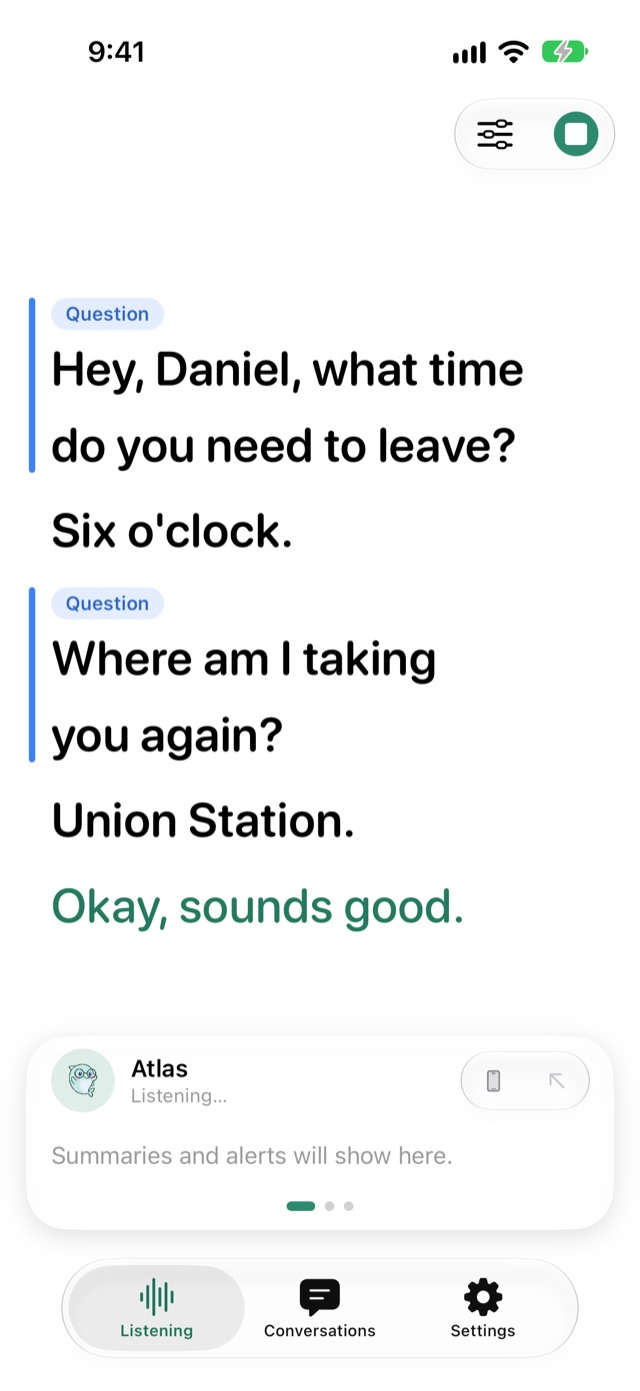
While listening, tap the sliders button at the top right.
All steps as text
- While listening, tap the sliders button at the top right.
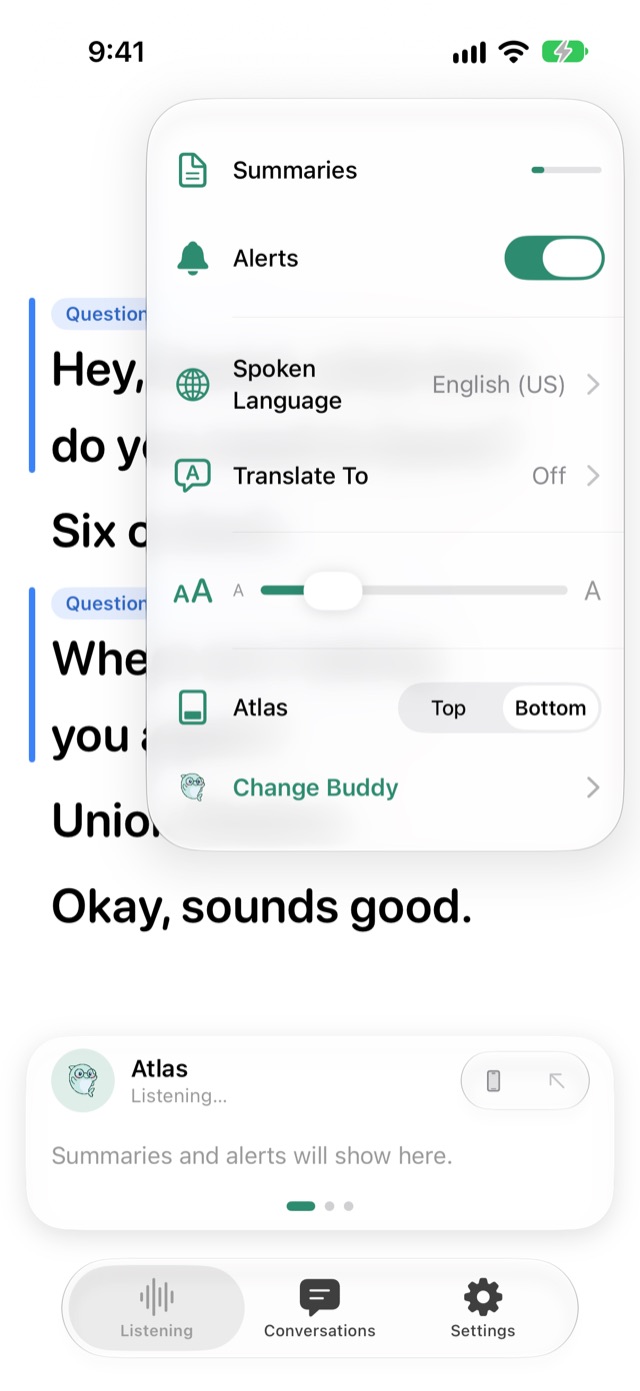
- Drag the text size slider to the right for bigger captions.
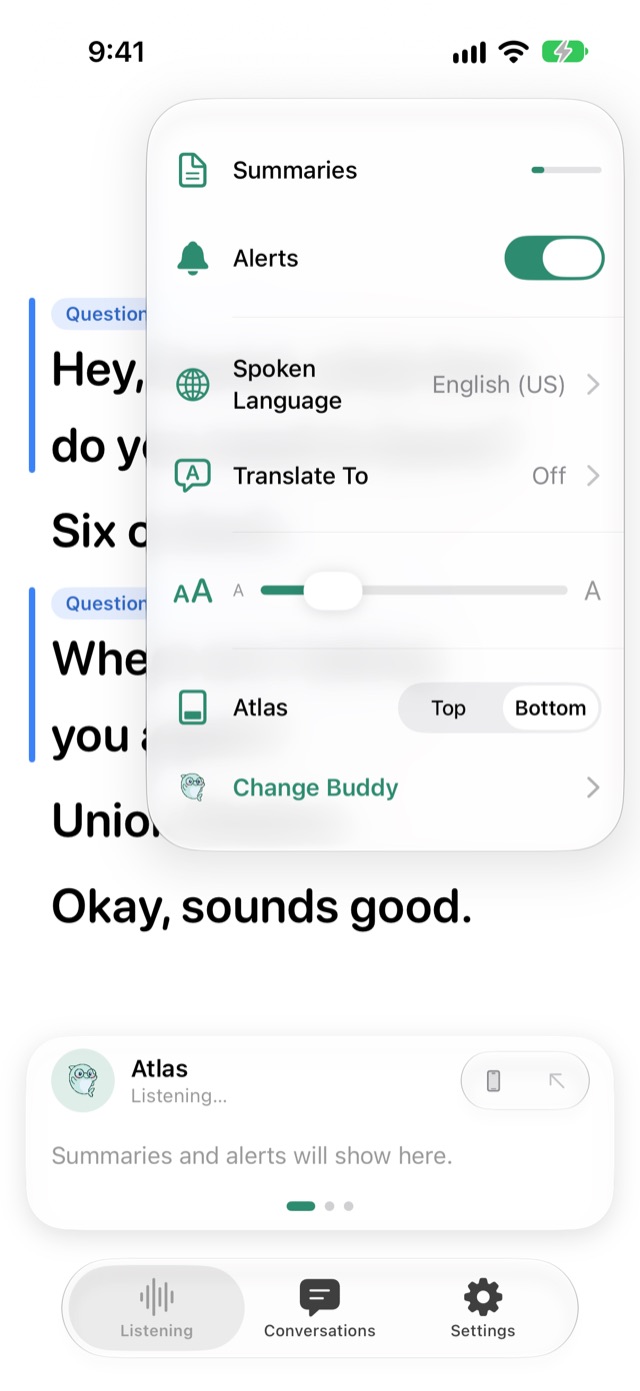
- Tap outside the menu to close it.
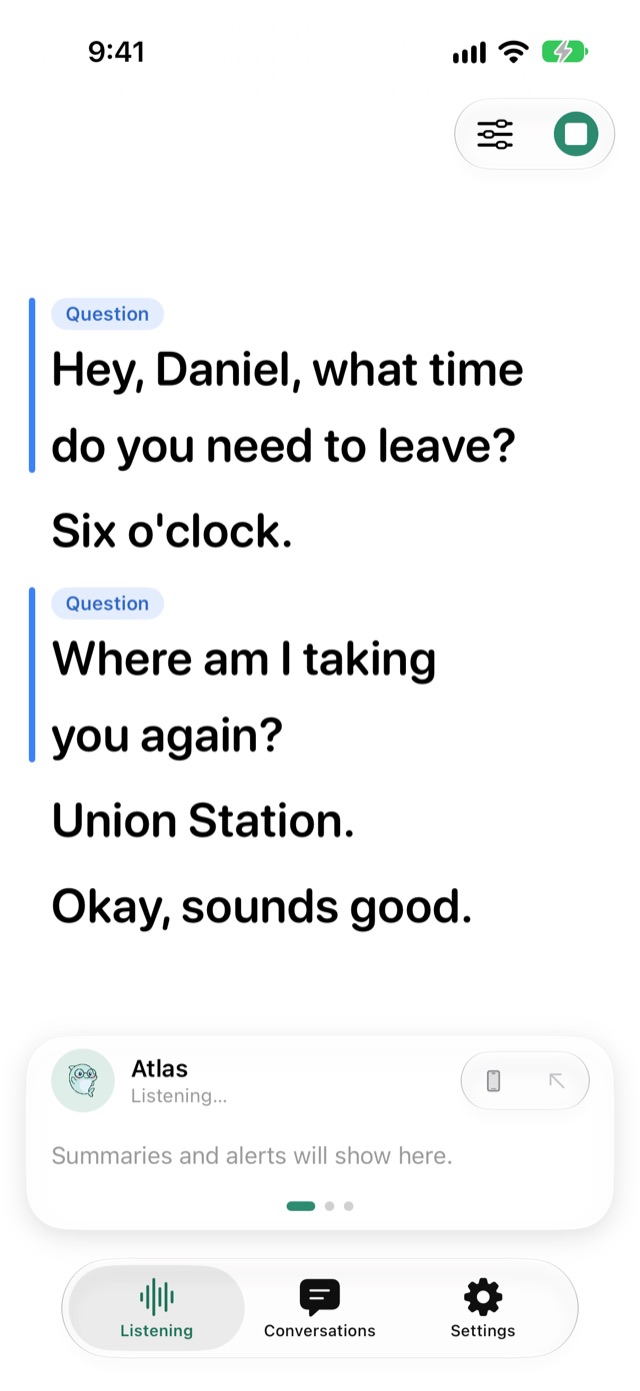
- Captions now show in the bigger size, and it's remembered for next time.
You can make captions much bigger, right while you're listening. Tap the sliders icon at the top right of the caption screen and drag the text size slider to the right. The change shows up straight away.
Change the size while listening
- Start listening.
- At the top right, tap the sliders icon (next to the round stop button).
- Find the slider with a small A on the left and a big A on the right.
- Drag it right for bigger captions, or left for smaller ones.
- Tap anywhere outside the menu to close it.
Your choice is saved for next time.
Change the size in Settings
- Tap the Settings tab.
- Scroll to Customize Captions.
- Drag the Caption Text Size slider.
How big can captions get?
- iPhone: from 16 up to 96 points. At the biggest size, you'll see about one word per line.
- iPad: up to 144 points. An iPad propped up on the table is a good way to read captions from a little further away.
It also follows your iPhone's text size
Captions also grow with your iPhone's own text size setting. If you've already made text bigger on your iPhone, captions start bigger too. You can change that setting in the iPhone Settings app under Accessibility > Display & Text Size > Larger Text.
Other ways to read more easily
- Turn the phone sideways for longer lines.
- Move the floating card out of the way. In the same sliders menu, set the card to the Top or Bottom (or Left or Right when the phone is sideways). Or tap the small arrow on the card to shrink it to the corner.
There aren't options for caption fonts or colors yet. See Caption display options for everything else you can change.
Last updated November 24, 2026.
Still need help?
Email [email protected]. A real person on our small team reads every message.