Share, print or save a transcript
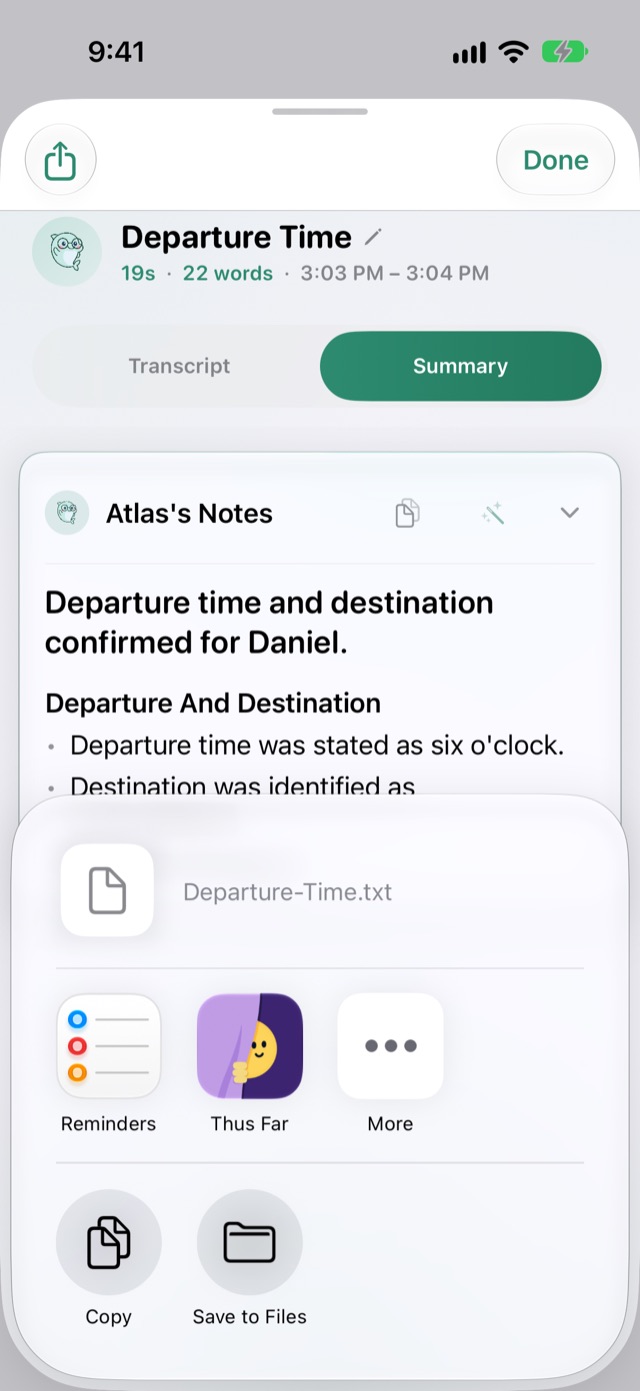
Open a saved conversation and tap the share icon to send the transcript as a text file by Mail or Messages, or save it to Files. From there you can print it.
Step 1 of 2
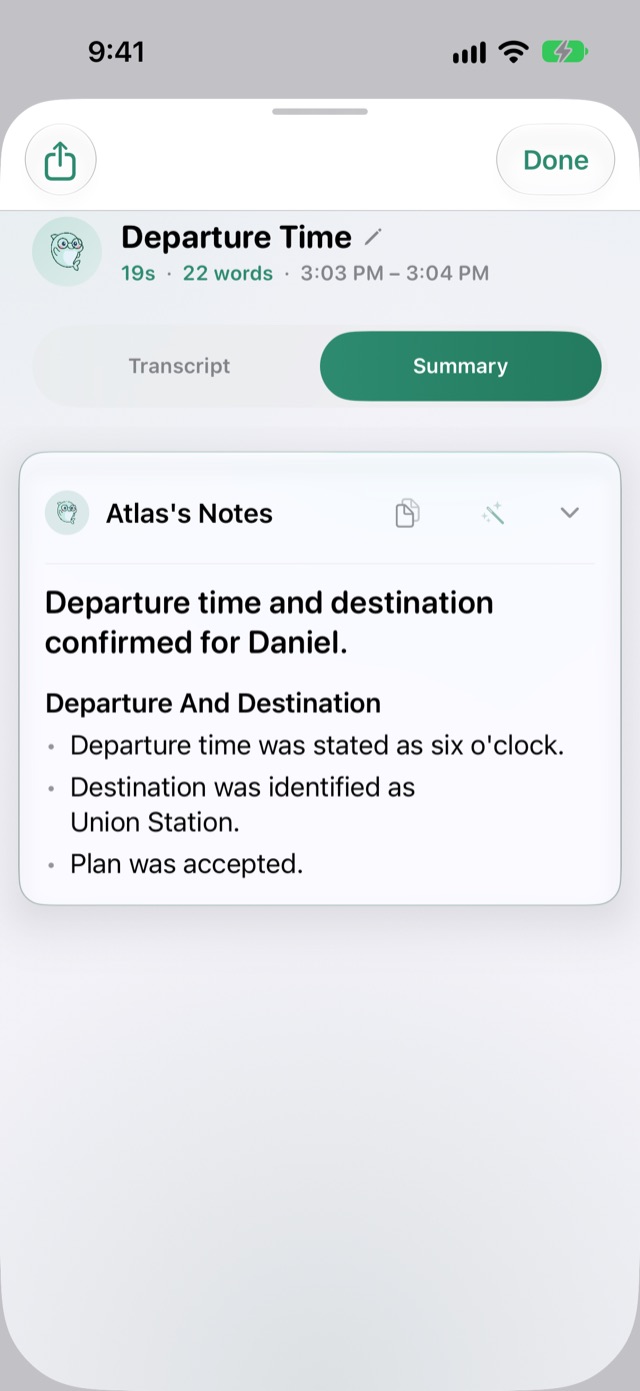
Open the conversation, then tap the share button at the top left.
All steps as text
- Open the conversation, then tap the share button at the top left.
- Choose Mail, Messages, Save to Files, or Print. The transcript is a plain text file.
You can send any saved conversation as a plain text file. Open it from the Conversations tab and tap the share icon (a square with an arrow pointing up). Then choose Mail, Messages, Save to Files, or any app on your share sheet.
Share a transcript
- Tap the Conversations tab.
- Tap the conversation you want.
- Tap the share icon. On iPhone it's at the top left. On iPad, when the conversation is open beside the list, it's at the top right of the conversation.
- Pick where to send it, such as Mail or Messages, or tap Save to Files.
The transcript is a text (.txt) file. It holds the words only. Audio is never recorded, so there's no sound to share.
Print a transcript
- Share the transcript and tap Save to Files.
- Open the Files app and tap the transcript to open it.
- Tap the share icon, then Print.
You can also share it to the Notes app and print from there, or email it to yourself and print it from a computer.
Share your buddy's summaries
If the conversation has summaries from your buddy, open the Summary tab, tap Buddy's Summaries & Alerts (the app shows your buddy's name), then tap Share Notes. The summaries are shared as a text file too. See Summaries while you listen.
Fix mistakes before you share
You can't edit the transcript inside Hearing Buddy yet. Share it to Notes, Pages or a word processor and correct it there. See Can I correct a wrong word?
Tip: A transcript you share is a copy. Deleting the conversation in Hearing Buddy doesn't delete copies you've already sent or saved.
Last updated November 24, 2026.
Still need help?
Email [email protected]. A real person on our small team reads every message.