Turn on Enhanced Accuracy for clearer captions
Enhanced Accuracy makes captions sharper in noisy rooms and spells names better, using a cloud captioning service. Turn it on from your buddy's card or in Settings under Cloud Enhanced.
Step 1 of 3
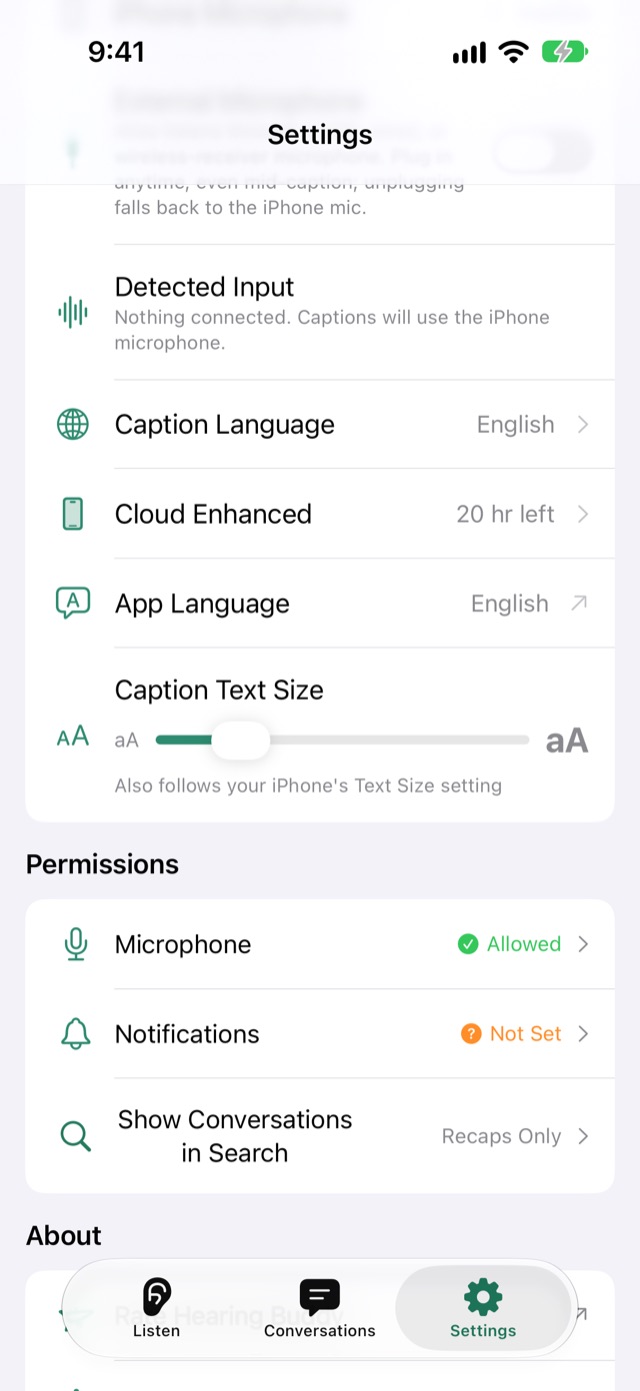
In Settings, scroll down and tap Cloud Enhanced.
All steps as text
- In Settings, scroll down and tap Cloud Enhanced.
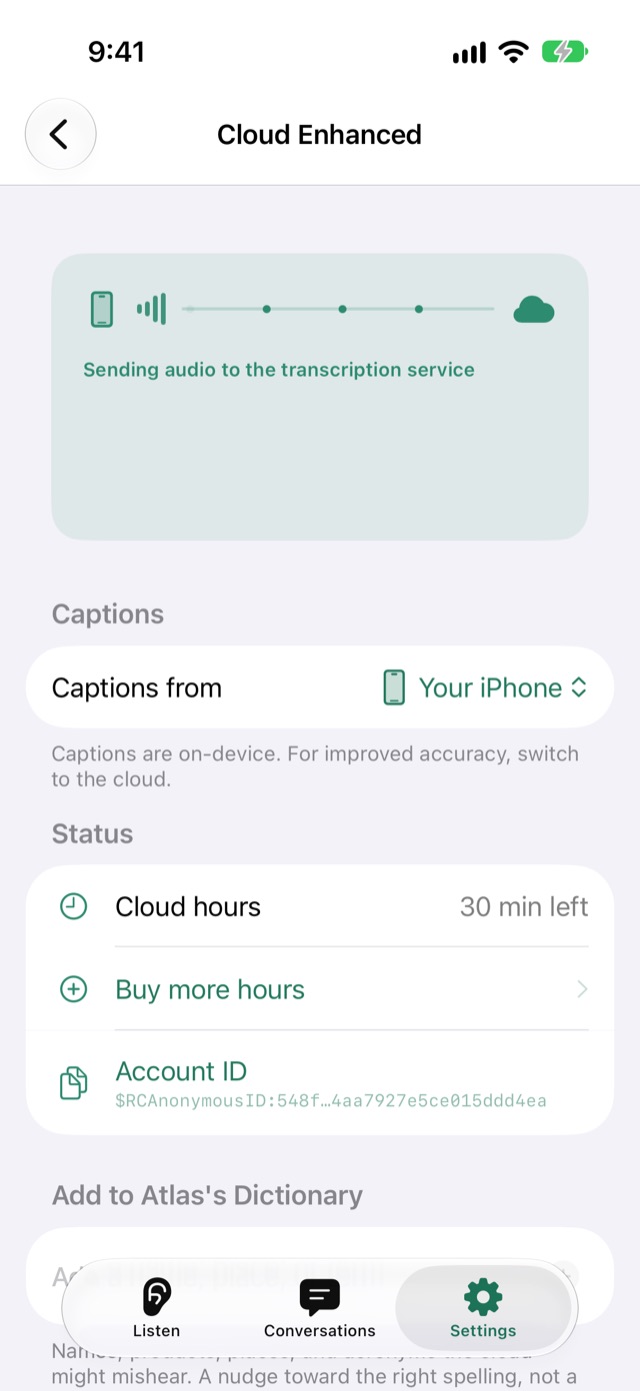
- Under Captions from, tap Your iPhone to open the menu.
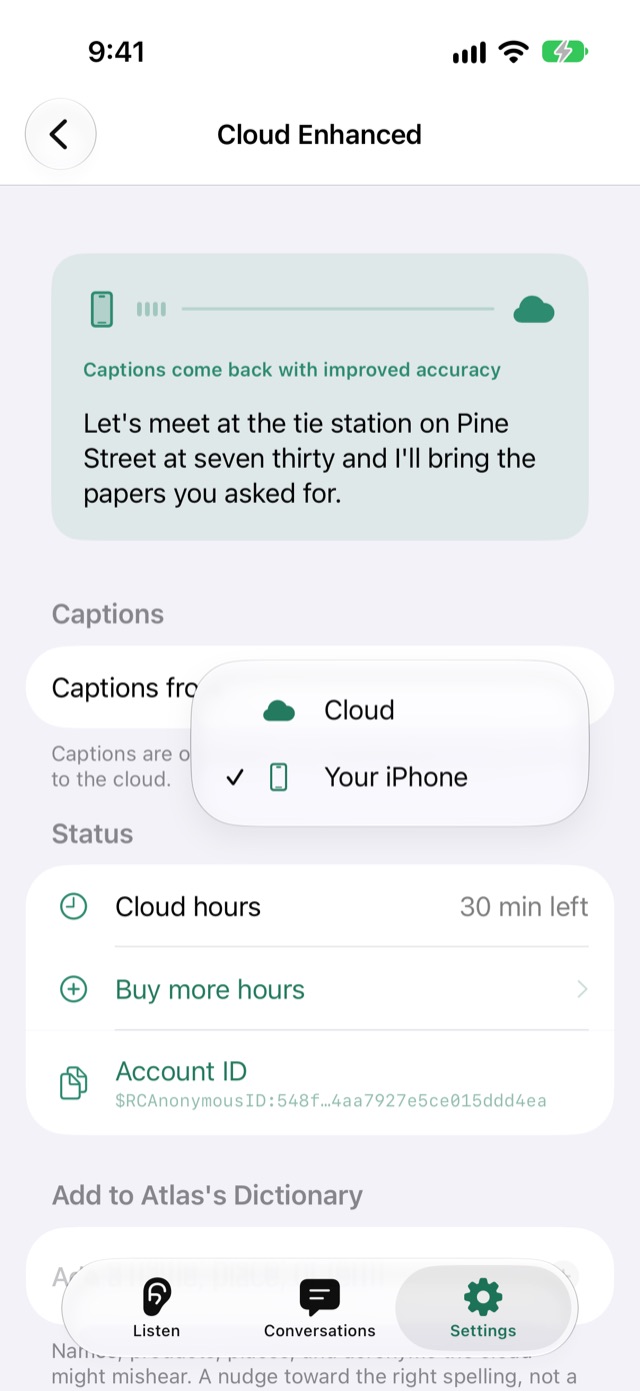
- Choose Cloud. Hearing Buddy asks first: read what's sent and what's kept, then tap Allow.
Enhanced Accuracy gives you sharper captions in noisy rooms, with names spelled right more often. While it's on, your buddy sends what the microphone hears to a cloud captioning service instead of captioning on your iPhone. Everyone gets 30 free minutes. Buddy+ includes more hours.
What happens to your audio
When you first turn it on, Hearing Buddy asks: Turn on Enhanced Accuracy? The message explains it in the app's own words:
"Sharper captions in noisy rooms, names spelled right. While it's on and a session is running, Buddy streams what the microphone hears, plus your dictionary words, to Muse Voice Transcribe by Meta for live captions. Meta doesn't keep any of it. Switch back to captions on this device anytime."
In plain terms:
- Audio is only sent while Enhanced Accuracy is on and a session is running.
- Your dictionary words go along with it, to help with spelling. See Teach Buddy names and special words.
- Meta doesn't keep any of it. Hearing Buddy never records or stores audio either.
- The captions come back as text, and your transcripts are saved only on your iPhone.
Tap Allow to turn it on, or Not Now to keep captions on your iPhone.
Turn it on or off during a session
- Look at the top of your buddy's card. Next to the minimize arrow is a small iPhone icon, or a cloud icon if Enhanced Accuracy is already on. On the free version or a free trial, it may show the minutes you have left instead.
- Tap it.
- Turn Enable Enhanced Accuracy on or off.
When it's on, the card title reads Enhanced Accuracy. When it's off, it says captions are on this iPhone.
Turn it on or off in Settings
- Tap the Settings tab.
- Scroll to Customize Captions and tap Cloud Enhanced.
- Under Captions, tap Captions from and choose Cloud or Your iPhone.
This choice is used for new sessions, and it also switches a session that's running now. When Cloud is picked, a red note below it explains that audio is processed on a server.
If you set it up during setup
During setup, Hearing Buddy offers Enhanced Accuracy. If you allowed it then, your sessions start with cloud captions. You can switch back to your iPhone at any time, using either of the steps above.
What you need
- An internet connection. If the connection drops or the service can't be reached, captions carry on using your iPhone automatically.
- A supported language. It works with every caption language except Cantonese. For Cantonese, the card says it's not available for this caption language yet.
- Cloud time left. When your time runs out, captions carry on using your iPhone. See How Enhanced Accuracy time works.
Note: The iPhone 11 family, iPhone SE (2nd generation) and iPad (9th generation) can't make captions on the device, so on those devices captions need Enhanced Accuracy, an internet connection and cloud time. See Captions don't appear.
When to use it
Enhanced Accuracy helps most in restaurants, busy rooms, and when the speaker is a little further away. In a quiet room, captions on your iPhone are often just as good, and nothing leaves your device. For more tips, see Get more accurate captions.
Last updated November 24, 2026.
Still need help?
Email [email protected]. A real person on our small team reads every message.